Results
Each Space collects the Results published to it: automated results pushed with the Testspace client, and Manual test sessions. A Result holds Suites, optionally organized in folders, plus content such as code coverage, static analysis and annotations.
You see Results in two places:
- The Space's Current tab shows its active Result.
- The Results tab lists every Result, in the Space and across the Project. Click a Result's name to open its page, which has the same layout as Current.
How a Result is judged is explained on Health, and how a failing test is tracked on Failures.
Result Page
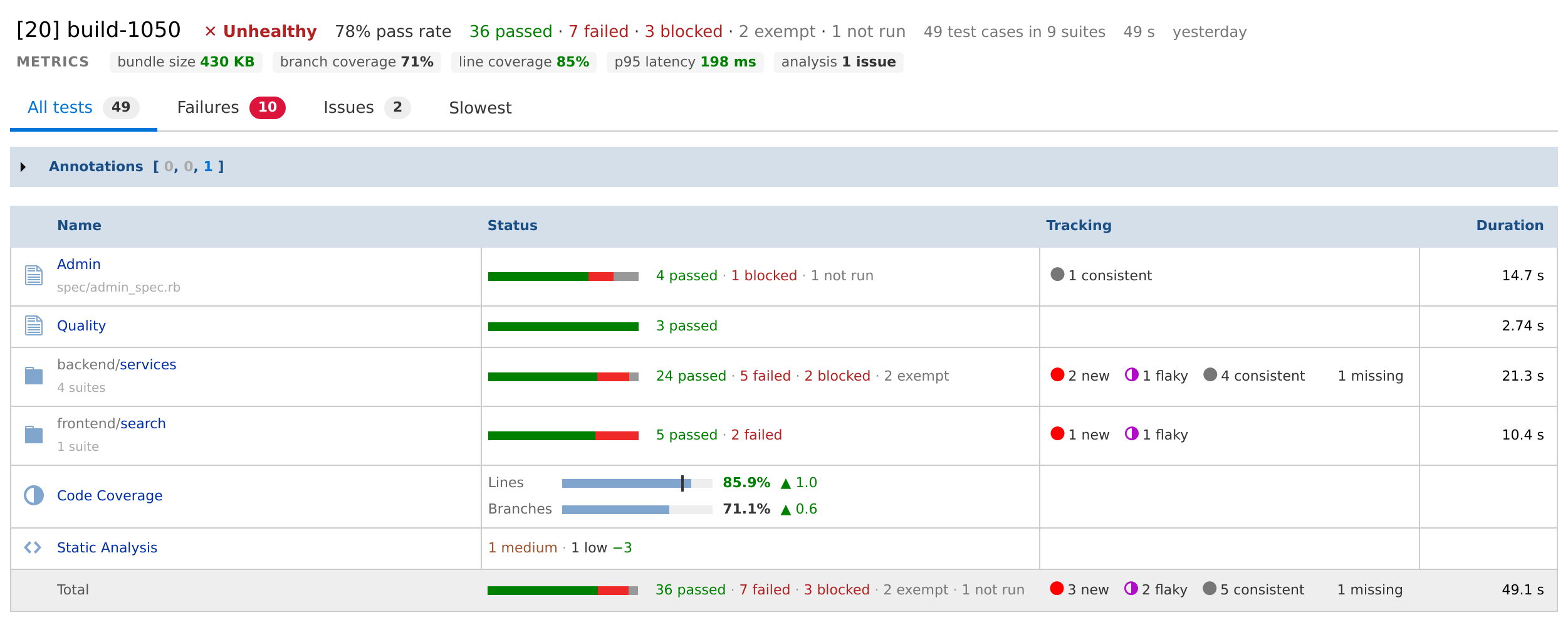
Summary Header
The first line names the Result (its sequence number in brackets, then its name) and summarizes it:
| Item | Shows |
|---|---|
| Health | ✓ Healthy, ✕ Unhealthy or ! Invalid, with a partial chip when it applies. Hover for each check's value and the reasons it is partial. A Result still processing shows In progress instead of Health and pass rate. |
| Pass rate | passed cases out of those that passed, failed or were blocked |
| Counts | N passed · N failed · N blocked · N exempt · N not run; a count shows only when it isn't zero, and the hover on not run splits it into not applicable and untested |
| Totals | "N test cases in N suites" |
| Subset note | for a subset, how many Suites ran out of the usual number, e.g. subset 3 of 41 suites ran |
| Duration | the test time of what ran in this Result (see Duration) |
| Time | when the Result was published |
Two more lines follow when they have something to show:
- Metrics: each enabled metric badge with its value, colored by its threshold. Click a name to open its graph on the Metrics tab. This line shows only in Spaces with enabled badges; see Metrics.
- Commit and build: where the Result came from. The commit (linked to the repository in a Connected Project) and description, CI build linked to the build with the CI build's duration (hover for its start and end time), and, on Current, the open pull request (PR #N). A Manual session links to Manual specs instead of a CI build.
View Tabs
Below the header, four tabs show different views of the same Result. On a folder's page they still cover the whole Result.
| Tab | Shows |
|---|---|
| All tests | the Suite tree (below), with the number of test cases |
| Failures | the failing and tracked cases, with the number failing in red; when nothing failed but tracked cases remain, their states in amber, e.g. 1 consistent (hover: Nothing failed in this result; still tracked from earlier runs); see Failures |
| Issues | the issues referenced by tracked failures; shown only when the Result has any; see Issues |
| Slowest | the slowest test cases or Suites (see Slowest) |
Show: All or Ran in This Result
In a Space that aggregates results (the Space's Aggregate results setting, which super admins set in the Space's form, or anyone who can edit the Space sets through the Web API; Spaces with Manual testing always aggregate), a Result also includes Suites carried from earlier Results. Show, at the end of the tab row, switches every view between All (everything in the Result, carried Suites included) and Ran in this result (only what this Result ran itself). Carried Suites are marked with an icon whose hover names the Result they came from, e.g. Suite carried from [20] build-42. What a Result carries is described in Automated and Manual Results Together.
All Tests
The All tests tab shows the Result's folders and Suites as a tree. Click a folder to open it (a path at the top shows where you are), or a Suite to open its Suite Details (a report opens its own page). A folder that holds a single folder is shown as one row, e.g. backend/services. A totals row closes the table.
| Column | Shows |
|---|---|
| Name | the folder or Suite; under a folder, its number of Suites; under a Suite, its source file when known |
| Status | a bar and N passed · N failed · N blocked · N exempt · N not run. The failed, blocked and exempt counts open Failures narrowed to that folder or Suite. A Suite whose tracked failures didn't run in this Result reads missing. |
| Tracking | the folder's or Suite's tracked failures: ● N new, ◐ N flaky, ● N consistent, and N missing for tracked failures that didn't run (see Tracking marks) |
| Duration | test time |
Duration
Duration is the test time of what ran in the Result: the sum of its cases' durations, so it can differ from wall-clock time when tests run in parallel. Some test frameworks don't report durations.
In an aggregating Space, Duration counts only what ran in this Result. The hover splits the total, e.g. 2 h 11 m in total: 39 m ran in this result, 1 h 32 m carried from earlier results.
Content Types
Each row's icon shows what it holds. What you can publish, and how, is described in File Content.
| Icon | Type |
|---|---|
 | Suite of test cases |
 | Folder |
 | Suite with custom metrics |
In a Result that includes Manual testing, each spec appears as a Suite with a flask icon. Clicking it opens the spec's run in its session, read-only. Code coverage, static analysis and code change have icons of their own (see Reports).
Reports: Code Coverage, Static Analysis and Code Change
Code coverage, static analysis and code change appear as report rows, each with its own icon, in fixed places at the top level of the tree: Code Change first, your folders and Suites next in the order they were published, then Code Coverage and Static Analysis last. Their Status column shows a summary instead of case counts:
| Row | Status |
|---|---|
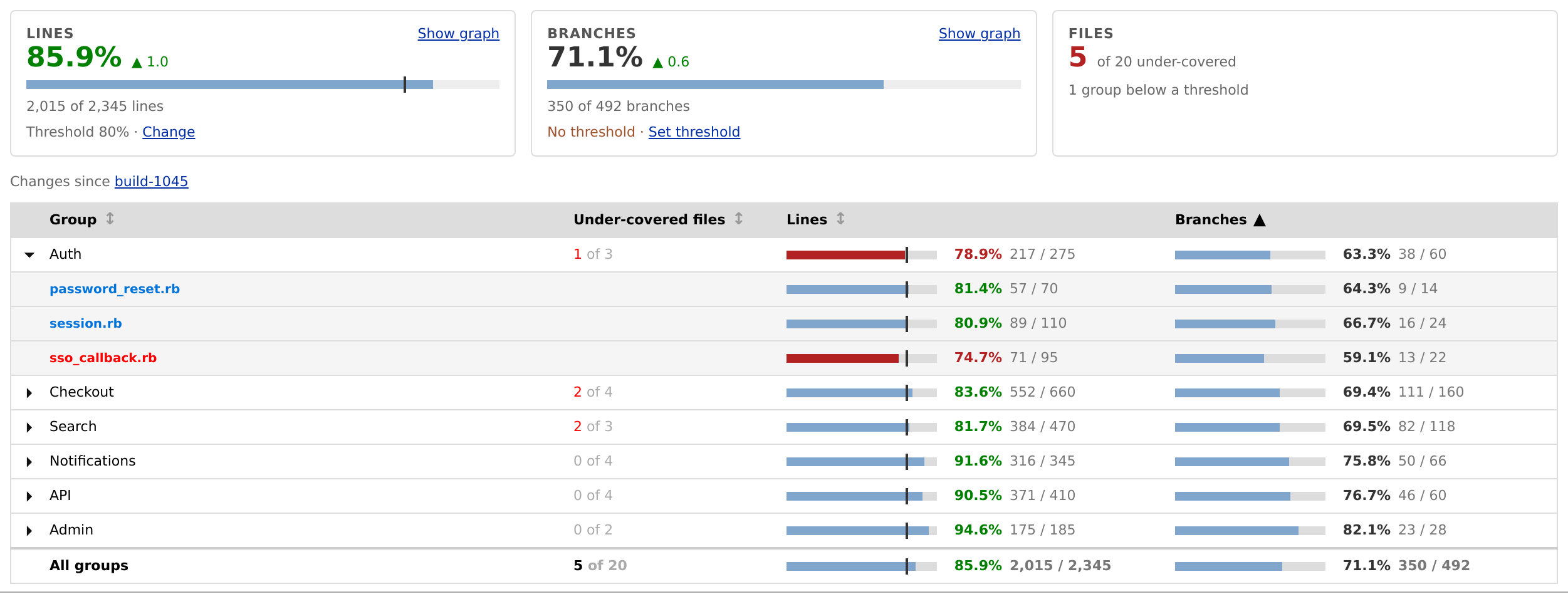
| Code Coverage | a bar per coverage type (Lines, Branches, …) with its percentage; the bar marks the threshold, if one is set, and a percentage below it is red. Hover a bar for the covered and total counts. |
| Static Analysis | the issues by severity, e.g. 2 high · 5 medium · 11 low, or No issues |
| Code Change | e.g. 1 commit · 47 files changed · +120 −30 (lines added and removed) |
Code Coverage and Static Analysis also show the change since the last complete Result (one that was Healthy or Unhealthy and not partial), so a subset doesn't read as a drop: ▲ 0.4 or ▼ 1.2 points of coverage, +3 or −2 issues. Hover it for the Result it's measured from.

Code Change opens its details in a dialog, like a Suite. Code Coverage and Static Analysis open a report page.
Report Pages
The Code Coverage and Static Analysis reports are pages, not dialogs: you can link to one, and the browser's Back button returns to the Result.
Tiles at the top sum up the report:
- Code Coverage: a tile per coverage type, with its percentage, bar, covered of total and change; and Files, the number of under-covered files (below a threshold), or the number of files when no threshold is set.
- Static Analysis: Issues, the number of issues by severity, with its change; and Files, the files with issues and how many have a High one.
Show graph on a tile opens the metric's graph on the Metrics tab. Below the tiles, Source names the file the client read the report from, and Changes since links to the Result the changes are measured against. Anything else the client reported, such as a warning, is under Annotations.
Each tile also says what it checks, and offers to set or change it if you can edit the Space's metrics:
- Code Coverage: Threshold 80% · Change, or No threshold · Set threshold. Set threshold suggests this Result's coverage less 2 points, rounded down (75.3% suggests 73%); you can change it before saving. A Codecov or Coveralls threshold is the service's own and can't be changed here.
- Static Analysis: Check: no High issues · Change, or No check · Set check: no High issues.
Both open the metric's edit dialog (Code Coverage, Static Analysis) and return to the report when saved.
The table lists the report's groups (packages or directories). Click a group to expand its files, and in Static Analysis each file's issues. Coverage lists the weakest groups first, by the coverage type that is lowest overall; Static Analysis lists the groups with the most High issues first. Click a column name to sort by it. In Coverage, a group's files are shown by their path within the group's shared folder.
Custom and External Content
A custom content file, such as a text, log, Markdown or HTML file, appears as a Suite; click it to read the content. External content appears as a Suite that opens its link. Either uses the metrics Suite icon when it carries custom metrics.
Annotations
Annotations are files attached to the Result's root, a folder, a Suite or a case, such as screenshots, logs or media. They are part of the Result and can be downloaded as long as it is kept (see Retention Policy).
An Annotations section above the tree, or at the top of a Suite's details, lists those attached at that level; expand it to see them. A case's annotations show when you expand the case.
Suite Details
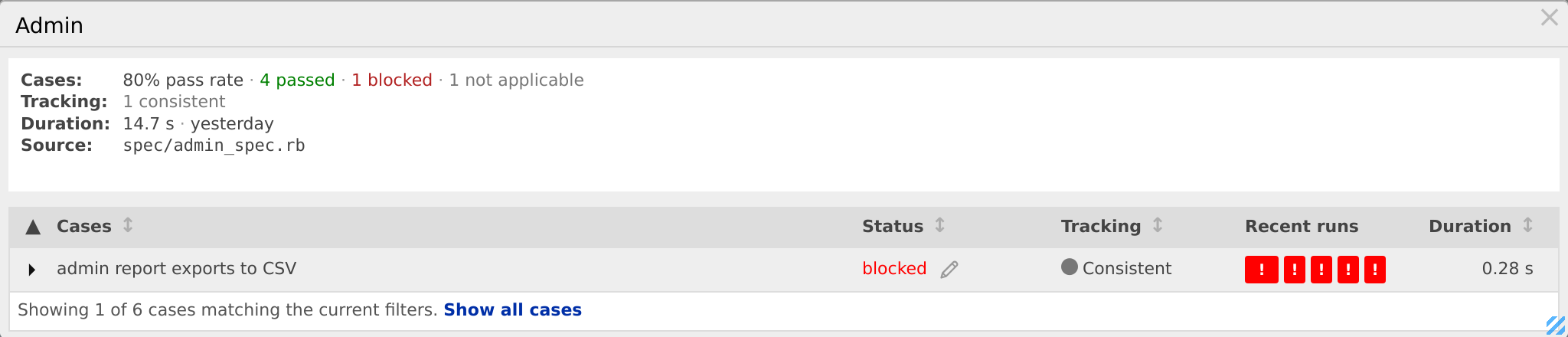
Clicking a test Suite opens its details in a dialog, which you can move and resize. (Code Coverage and Static Analysis open report pages instead.)
The top lists the Suite's Cases (pass rate and counts), Tracking (its tracked failures), Duration and when it ran, Carried from (the Result a carried Suite came from), its Source file, and its description. Its annotations follow.
| Column | Shows |
|---|---|
| Cases | the case name; expand a case to see its annotations |
| Status | the case's status (an exempt case's is struck through); on the active Result, a pencil to Triage a tracked failure |
| Tracking | the case's tracking state (see Tracking marks) |
| Recent runs | the case's last runs, newest first (see Recent runs) |
| Duration | the case's duration |
When a Suite has failures, its details list only the failing cases, with Showing N of M cases matching the current filters and a Show all cases link. Each column sorts when you click its name.
Slowest
The Slowest tab ranks the Result's test time. Organize by switches between:
- Case (the default): the 100 slowest test cases, with Status, Duration and Share (the case's share of the Result's test time). Click a case to open its history.
- Suite: the 100 slowest Suites, with Cases, Avg / case, Duration and Share.
A note says what the list holds, e.g. The 100 slowest of 2,340 test cases.
Results Tab
The Results tab is on both the Space and the Project. Its heading covers the latest Results (up to 60):
- the date range, the number of Results, and test cases executed (with the number of unique cases)
- the overall pass rate, with passed and total counts
- in a Space, Last 5 results: one bar per Result's Health, oldest to newest. Green is Healthy, gray (not red) Unhealthy, amber Invalid; a half-filled bar is partial, and a dashed one is a missed publication deadline. Hover for each Result's verdict and what failed.
Two sub-tabs follow: By Result (one row per Result) and By Test Case (one row per test case, across those Results).
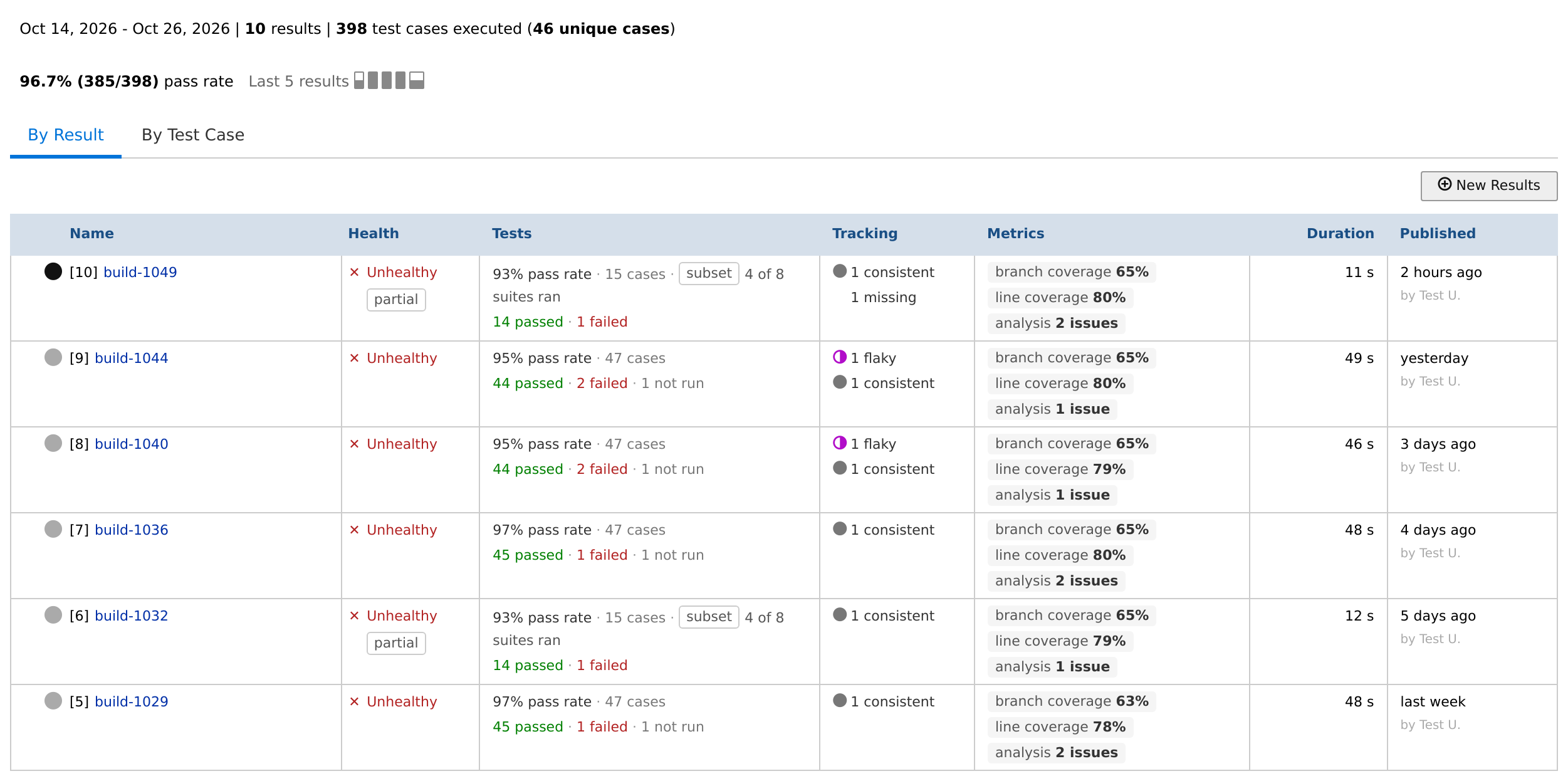
By Result
The Results, newest first. In a Space, New Results uploads results by hand from a file in a supported format, and Show more results loads older ones. The Project's Results tab lists every Space's Results, grouped by day, with the Space under each Result's name.
| Column | Shows |
|---|---|
| Icon | the Result's state (see below) |
| Name | the sequence number and name, linked to the Result's page, with a link to its CI build; below, its description and commit |
| Health | ✓ Healthy, ✕ Unhealthy or ! Invalid, with a partial chip; hover for each check |
| Tests | pass rate, number of cases and any subset note, over N passed · N failed · N blocked · N exempt · N not run; the exempt count opens the exempt cases in Failures |
| Tracking | ● N new, ◐ N flaky, ● N consistent and N missing, plus an issues count that opens the Issues tab |
| Metrics | each enabled metric badge's value; shown only in Spaces with enabled badges |
| Duration | the test time of what ran in this Result (see Duration); below it, the CI build's duration |
| Published | when, and by whom; for a Manual session, when it was last tested |
A speech-bubble count at the end of the row opens the Result's Note (see Comments).
The icon shows the Result's state:
| Icon | Means |
|---|---|
| black circle | the active Result: what Current shows, and where Triage notes are saved |
| gray circle | an earlier Result |
| hollow circle | in progress: the Result is still receiving or processing content |
| circle with a pin | a pinned Result (see Options) |
Options
Hover a row to show the menu icon at its left end. The menu offers:
| Option | Does |
|---|---|
| Comment | adds a comment to the Result's Note (see Comments) |
| Pin / Unpin | keeps the Result's content from being removed by the retention policy; not available while the Result is in progress |
| Rename | changes the Result's name and description (an Organization admin or the user who published it) |
| Add | uploads more results into a Result that is still in progress |
| Complete | completes a Result that is still in progress, without adding more |
| Export | downloads the Result as a Testspace XML file |
| Delete | deletes the Result, after a Delete Result? confirmation (an Organization admin or the user who published it). Deleting can change the Space's test case statistics and Failure Tracking. |
In a Connected Project, Results published to a tag's Space are pinned automatically.
Comments
To discuss a Result, add a comment from its options menu, or reply to its publication email. Both go to a Note for the Result; see Note From a Result.
By Test Case
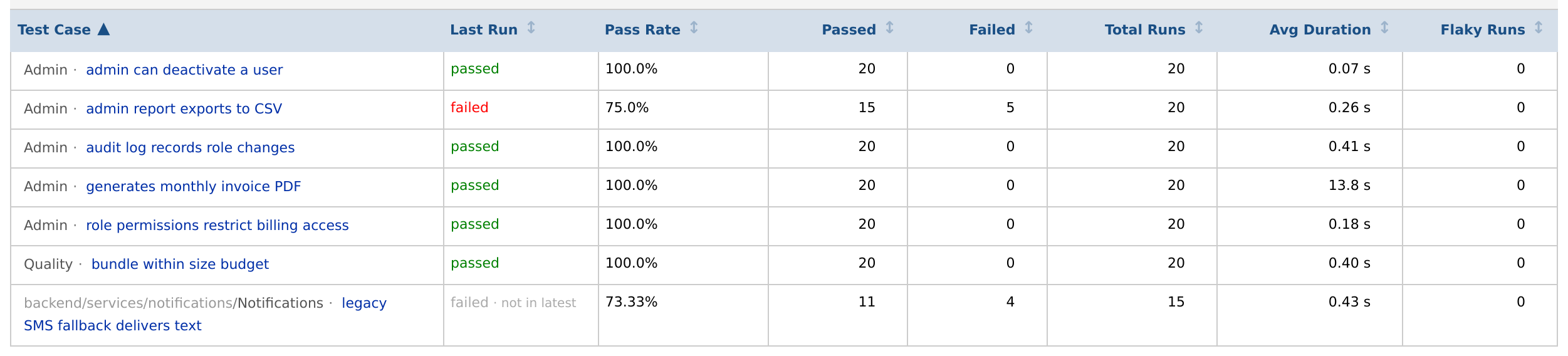
One row per test case, with statistics from its recorded runs. The count above the table reads Tracking N test cases.
| Column | Shows |
|---|---|
| Test Case | the folder path, Suite and case name; click to open its history |
| Last Run | the outcome of the last Result the case ran in; hover for that Result's date and name. In a Space, · not in latest marks a case that didn't run in the latest Result; in a Space with Manual testing, the latest automated Result, so a case last run in a Manual session never shows it. |
| Pass Rate | the case's pass rate across its runs |
| Passed / Failed | how many times it passed and failed |
| Total Runs | how many times it ran |
| Avg Duration | its average duration |
| Flaky Runs | the number of Results in which the case was Flaky |
Search filters the list by case name or path. Each column sorts when you click its name.
Case History
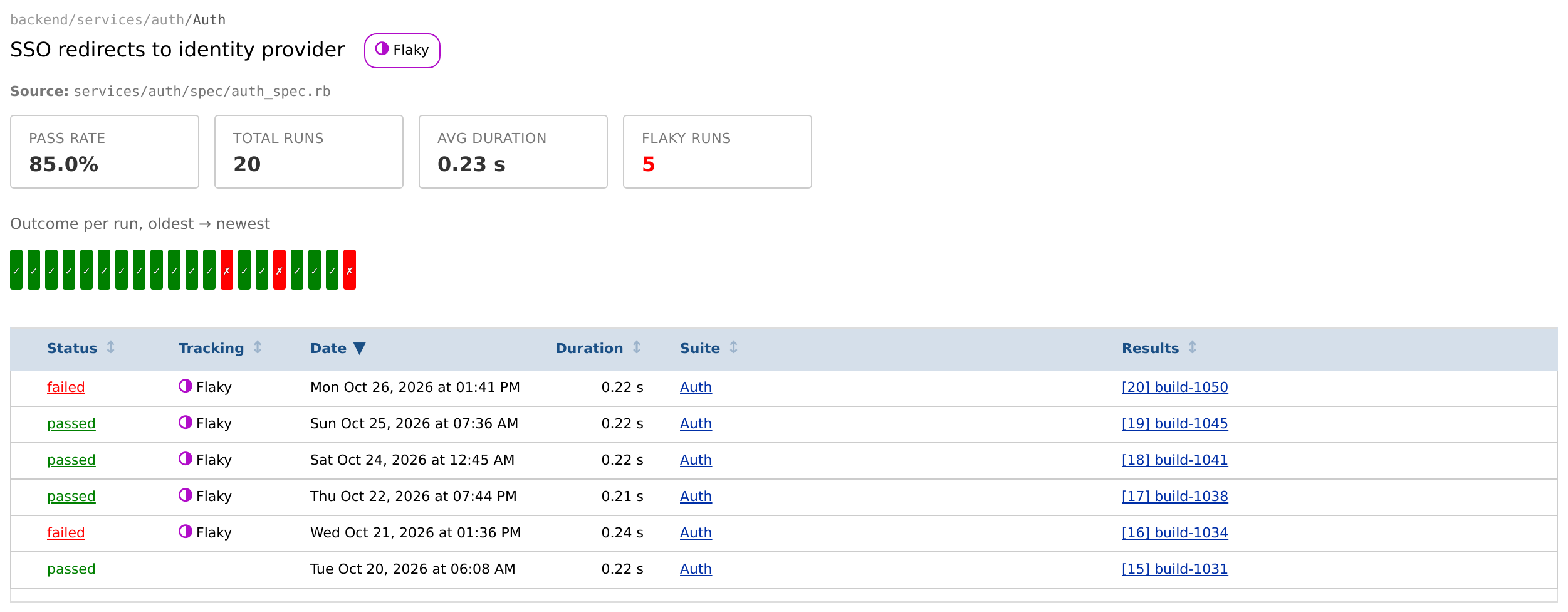
Clicking a case opens a summary with its Pass Rate, Total Runs, Avg Duration and Flaky Runs, and its outcome per run. View full report opens the case's page, which adds:
- its current tracking state and whether it is exempt
- its source file
- at Project scope, its pass rate in each Space
- a table of its runs, newest first: Status, Tracking, Date, Duration, the Suite (opens its Suite Details) and the Result (opens it); Results it didn't run in read missing
The case's page is also where View full history leads from Failures.
Result Email
When a Result is published, Testspace emails the Project's users who asked for it: each user's Notification setting for the Project is All (every Result) or Unhealthy only (Results that aren't Healthy, the first Healthy one after them, and a Space's first Result). Set it in your user settings. Sandbox Spaces send no result email.
The subject names the Project, the Space, the verdict and the Result, e.g. [my-project] [main] UNHEALTHY Results "build.42"; a verdict other than Healthy is in capitals. The email shows:
- the verdict (with partial when it applies), the Result's name linked to its page, and who published it
- its description or commit
- Tests: the pass rate, a subset note if it was one, how many cases are failing, and the threshold
- Tracking: its new, flaky and consistent failures
- each enabled metric badge, and the code change when there is one
- Duration
Reply to the email to comment on the Result: the reply is added to the Result's Note (Comments). The link at the bottom opens your notification settings.
Retention Policy
Testspace periodically removes the content of older Results (their Suites, cases and annotations). A Result whose content is removed leaves the Results list; its metric data stays on the Metrics tab.
A Space always keeps:
- every Result from the last 30 days
- its 5 most recent Results, however old
- every pinned Result
These are the defaults; your Organization may have different values. In the Space of a closed pull request, or of a disconnected Project, Results are removed sooner, pinned ones included.