Custom Metrics
Custom metrics graph any numbers you measure: timing, resource use, counts of warnings, errors or retries. They take four steps. The first two happen with every publish, usually in CI; the last two, once.
- Write the values to a CSV file.
- Publish it, attached to a file you publish with your results.
- Add the graph with New Metric on the Metrics tab.
- Set a threshold and a badge, if the metric should count toward Health.
This page follows one example throughout: the p50 and p95 latency of an API, from a load test's log.
1. Write a CSV File
Each row of the CSV file is one metric: an optional name, then its values. perf.csv:
API latency,182,241
This metric is named API latency, with two values: the p50 latency, 182 ms, and the p95, 241 ms. A row without a name gets one, metric-n. Write the file from whatever produced the numbers, for example with a script that reads your test or load-test output; Examples has two.
2. Publish It
Attach the CSV file to a file you publish, by putting its name in braces after that file's:
testspace results.xml "perf.log{perf.csv}"
perf.logis the file the numbers come from. It's published too, and appears in the Result as a Suite you can open to read it. It can be any text, Markdown or HTML file, or a link to external content.- To attach the metric to one of your test Suites instead, name the Suite in brackets:
"[Suite name].{perf.csv}". {perf.csv:description}adds a description.- Quote the argument: the braces mean something to most shells.
Publish the CSV with every Result, so the metric has a value in each. The Testspace client reference has the full file syntax.
3. Add the Graph
Publishing the data doesn't create a graph. Add it once, on the Space's Metrics tab:
- Click New Metric. The dialog lists the custom metrics in the Space's active Result (the one Current shows), each under the file it's attached to.
- Select the metric, then click OK to add the graph with its default settings, or CUSTOMIZE to set them first (step 4).
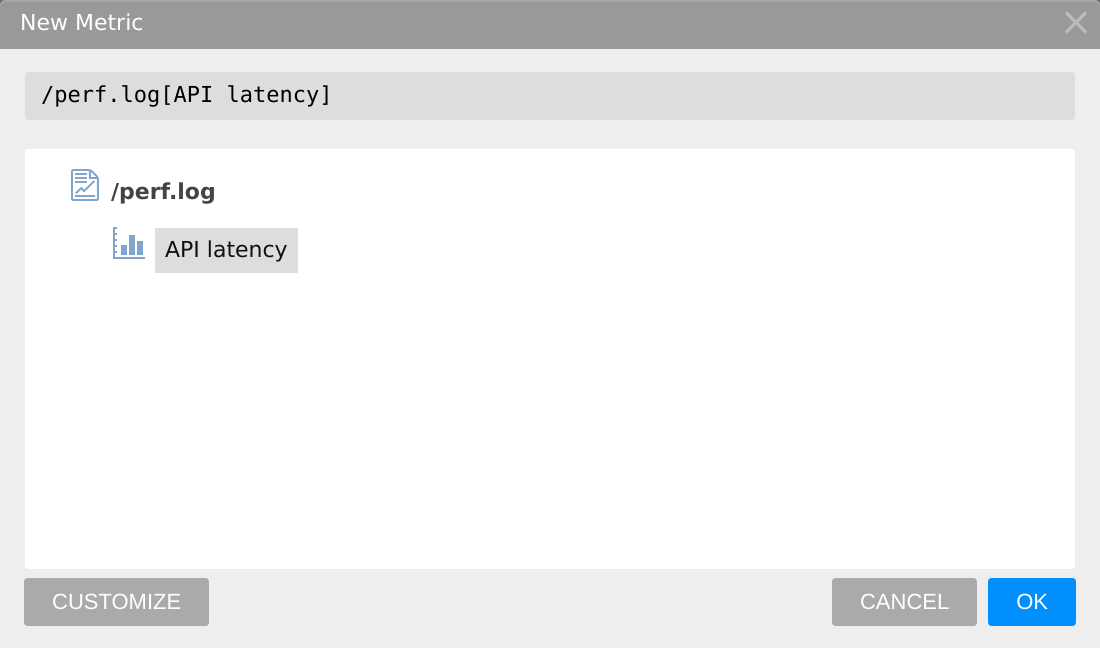
The graph is filled in from every Result the Space keeps that has the metric's data, so it shows history from before you added it. Each later Result adds to it.
The dialog lists only what the active Result contains. Check that the CSV file was published in braces with the latest Result, then try again. When the active Result has no metric data at all, New Metric opens an empty form instead of the list.
A Space has one graph per metric. To graph the same values a second way, publish them again in another row, under another name.
4. Set a Threshold and a Badge
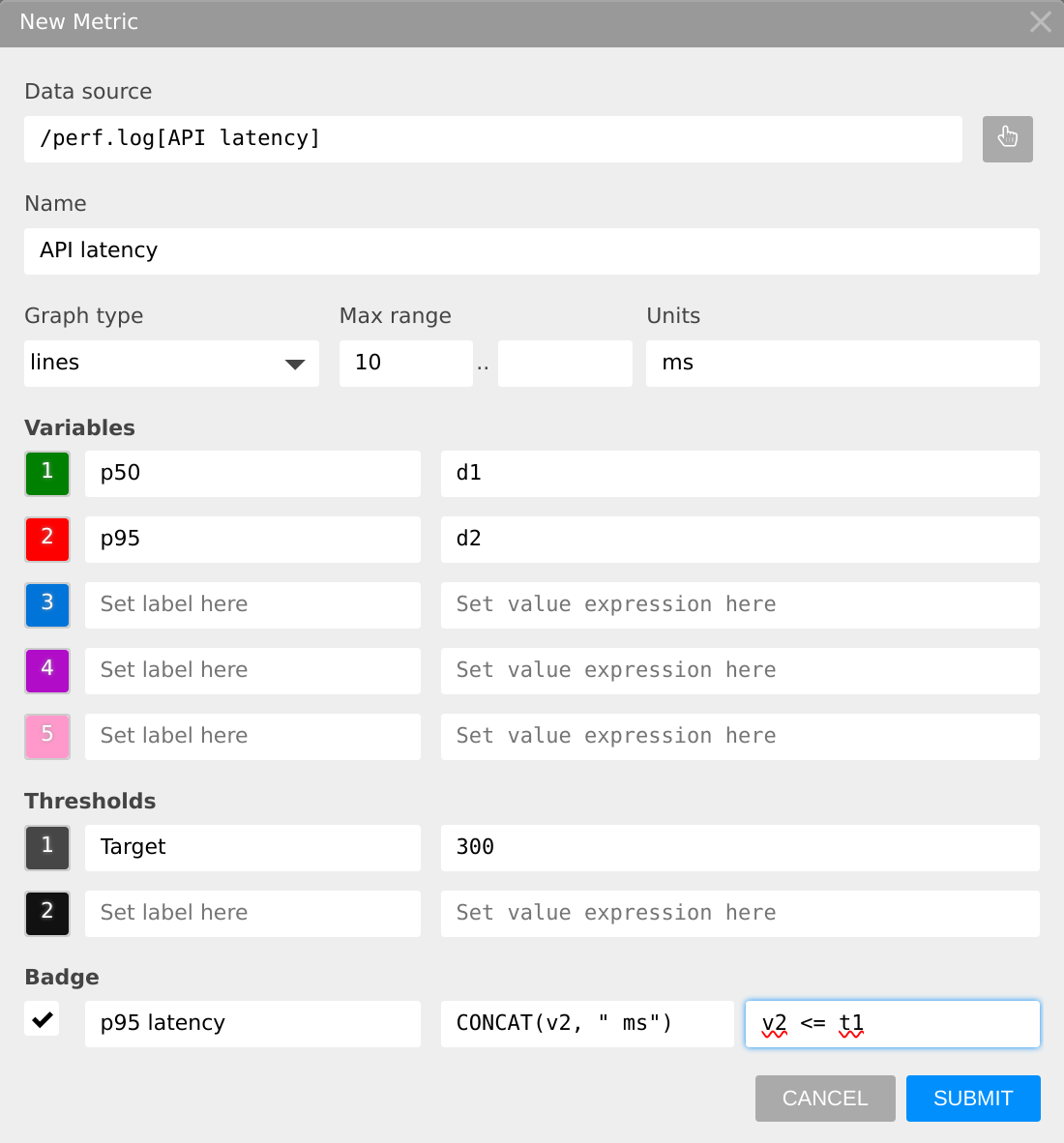
Click CUSTOMIZE in New Metric, or later select Edit from the graph's menu. The example uses:
| Field | Example | What it does |
|---|---|---|
| Name | API latency | the graph's title |
| Graph type | lines | lines or columns |
| Units | ms | added to the graph's values |
| Variables | p50: d1, p95: d2 | what the graph plots. d1, d2, … are the row's values, in order; Testspace fills in one variable for each. |
| Thresholds | Target: 300 | a reference line on the graph, t1 in expressions |
| Badge | p95 latency, CONCAT(v2, " ms"), v2 <= t1 | the badge's label, the value it shows, and its check |
The result: a graph of both percentiles against the target, and a badge showing the p95.
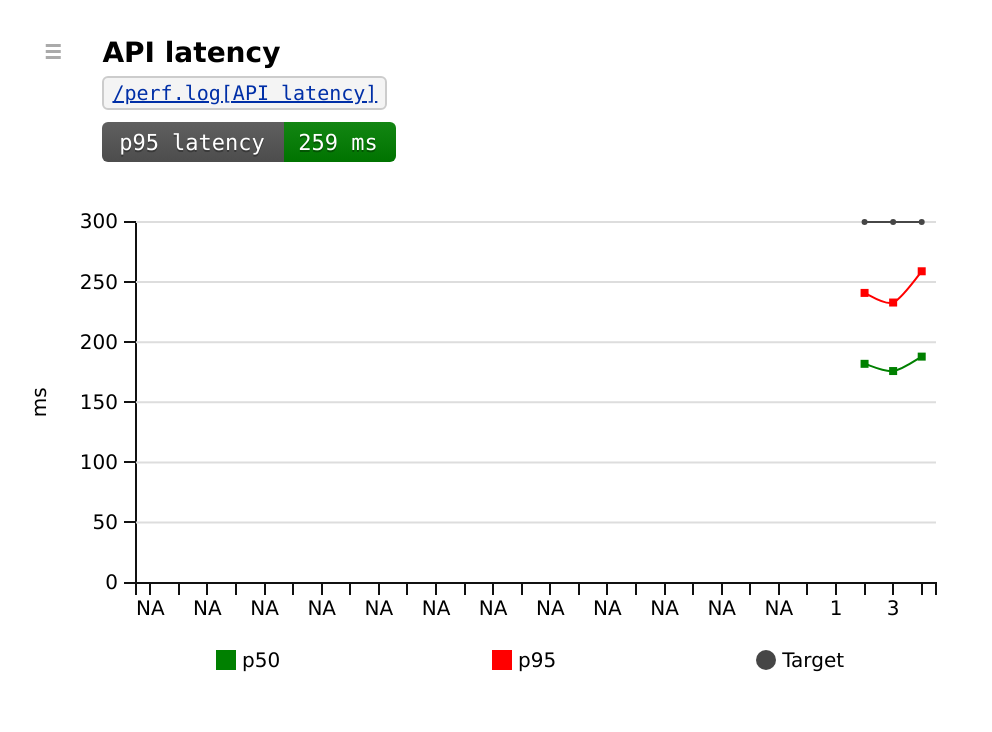
The badge's check makes the metric part of Health. While v2 <= t1 holds, the badge is green and passes; when the p95 goes over 300 ms, it's red and the Result is Unhealthy (Health). Leave the check empty for an informational badge that shows the value and checks nothing. Enabled badges also show in the Spaces listing, the Results lists and the Result page (Badges).
Settings
| Setting | Meaning |
|---|---|
| Data source | the metric's path, /file[name], set by New Metric |
| Name | the graph's title; required when the CSV row had no name |
| Graph type | lines or columns |
| Max range | the left box pins the top of the vertical axis to this value, even when the values are smaller; the right box sets the largest value shown, and larger values are cut off |
| Units | a unit added to the graph's values |
| Variables | up to five, v1 to v5, each a label, a color and an expression of the row's values d1, d2, … |
| Thresholds | up to two, t1 and t2, each a label, a color and an expression of d and v values, drawn as a line of small dots |
| Badge | on or off; its label; its value, an expression (CONCAT adds a unit to a number); and its check, an expression that must be true for the badge to pass |
Expressions
Variables, thresholds and the badge are expressions: a value (d1), a number, or a calculation, such as a total or an average. Function names work in upper or lower case. Available:
Math: +, -, *, /, %, ^, |, &

Comparison: <, >, <=, >=, <>, !=, =

Logic: IF, AND, OR, NOT

Numeric: MIN, MAX, SUM, AVG, COUNT, ROUND, ROUNDDOWN, ROUNDUP

String: LEFT, RIGHT, MID, LEN, FIND, SUBSTITUTE, CONCAT
Basic examples:
# Logic
IF(condition, then, else)
IF(10>5, "yes", "no") => yes
IF(10<5, "yes", "no") => no

OR(arg1, arg2...)
OR(1 = "1", "2" = "2", true = false, false) => true
# Numeric
MIN(arg1, arg2...)
MIN(20, 5, 10) => 5

ROUND(value[, precision]) # The optional "precision" parameter sets the number of decimal places
ROUND(1.2) => 1
ROUND(1.23, 1) => 1.2
# String
LEFT(value, count) # a numeric "value" is converted to a string
LEFT("abcdef", 4) => "abcd"

MID(value, offset, count)
MID("abcdef", 2, 2) => "bc"

LEN(value)
LEN("abcdef") => 6

SUBSTITUTE(value, search, replace)
SUBSTITUTE("abcdef", "cd", "xy") => "abxyef"

CONCAT(value1, value2)
CONCAT(5,"%") => "5%"
Examples
Log File Messages
Counting warnings, errors and fatal errors in a log, output.log, as one metric with three values:
#!/bin/bash
warn_count=$(grep -o 'WARNING' output.log | wc -l)
error_count=$(grep -o 'ERROR' output.log | wc -l)
fatal_count=$(grep -o 'FATAL' output.log | wc -l)
echo "Log Messages,$warn_count,$error_count,$fatal_count" > messages.csv

testspace results.xml "output.log{messages.csv}"
In New Metric, select Log Messages, then CUSTOMIZE and label the variables Warnings, Errors and Fatal.
Profiling With cProfile
Python's cProfile output, output.txt, turned into two metrics: the total time, and the time of the five slowest functions.
output.txt
         50000002 function calls in 10.118 seconds

   Ordered by: cumulative time

   ncalls  tottime  percall  cumtime  percall filename:lineno(function)
 10000000    2.685    0.000    2.685    0.000 {math.trunc}
 10000000    2.630    0.000    2.630    0.000 {math.cos}
 10000000    2.099    0.000    2.099    0.000 {math.frexp}
 10000000    1.573    0.000    1.573    0.000 {math.sqrt}
 10000000    0.987    0.000    0.987    0.000 {math.isnan}
        1    0.234    0.234    0.234    0.234 {range}
        1    0.000    0.000    0.000    0.000 {method 'disable' of '_lsprof.Profiler' objects}
The metric data, captured in a CSV file:
cprofile.csv
Total Time, 10.118
Function Time, 2.685, 2.630, 2.099, 1.573, 0.987
testspace "output.txt{cprofile.csv}"
An External Service
When your logs are in a service such as AWS CloudWatch Logs, publish a link to them instead of a file, with the metric attached. Create a link file, cloudwatch.url, to the filtered log:
BASE_URL="https://us-west-2.console.aws.amazon.com/cloudwatch/home?region=us-west-2#logEventViewer"
LOG_GROUP="your-group-name"
LOG_STREAM="your-stream-name"
EVENT_FILTER="?ERROR?FATAL?WARN"
echo "InternetShortcut.URL=${BASE_URL}${TASK_ID}:group=$LOG_GROUP;stream=$LOG_STREAM;filter=$EVENT_FILTER" > cloudwatch.url
Count the log's warnings and errors into cloudwatch.csv (a row without a name, so the metric is named metric-n until you rename it in Customize):
aws logs filter-log-events --log-group-name "$LOG_GROUP" --log-stream-names "$LOG_STREAM" --filter-pattern "$EVENT_FILTER" > events.json

errors=$(cat events.json | jq '.events | map(select(.message | test("ERROR|FATAL"))) | length')
warnings=$(cat events.json | jq '.events | map(select(.message | test("WARN"))) | length')
echo "$warnings,$errors" > cloudwatch.csv
Publish the link with the metric attached:
testspace results.xml "cloudwatch.url{cloudwatch.csv:my-description}"