Notes
Notes share information and status with your team: a release checklist, a test plan, the discussion of a Result. They belong to the Project: its Notes tab lists them, and one collection serves all of the Project's Spaces. Notes are kept and searchable.
Notes Tab
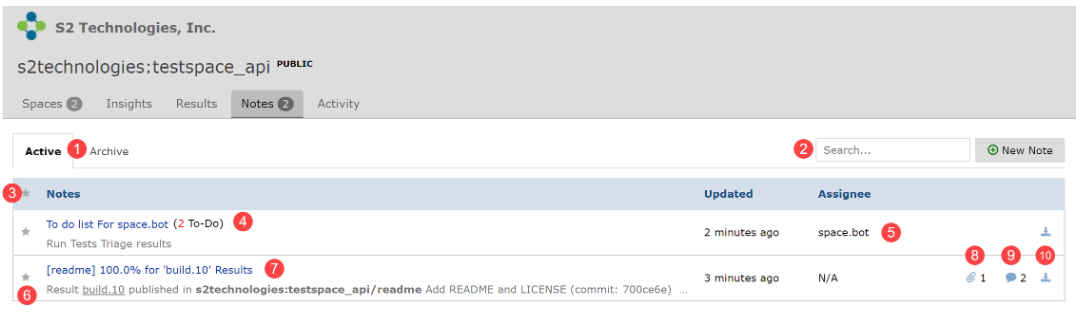
- Switch between the Active and Archive Notes.
- Search the Notes' titles, text, comments and assignees.
- The star in the header shows only starred Notes, or all of them.
- The number of open (unchecked) To-Do items, when the Note has a To-Do list.
- The Note's assignee, if any. The Updated column beside it shows when the Note last changed.
- The star marks a Note as important. Only Organization admins can star a Note.
- The Note's title opens it.
- The number of files attached.
- The number of comments.
- Archives the Note, moving it to the Archive tab; the same icon there restores it.
New Note
There are two ways to create a Note:
- click New Note on the Notes tab
- comment on a Result (Note From a Result)
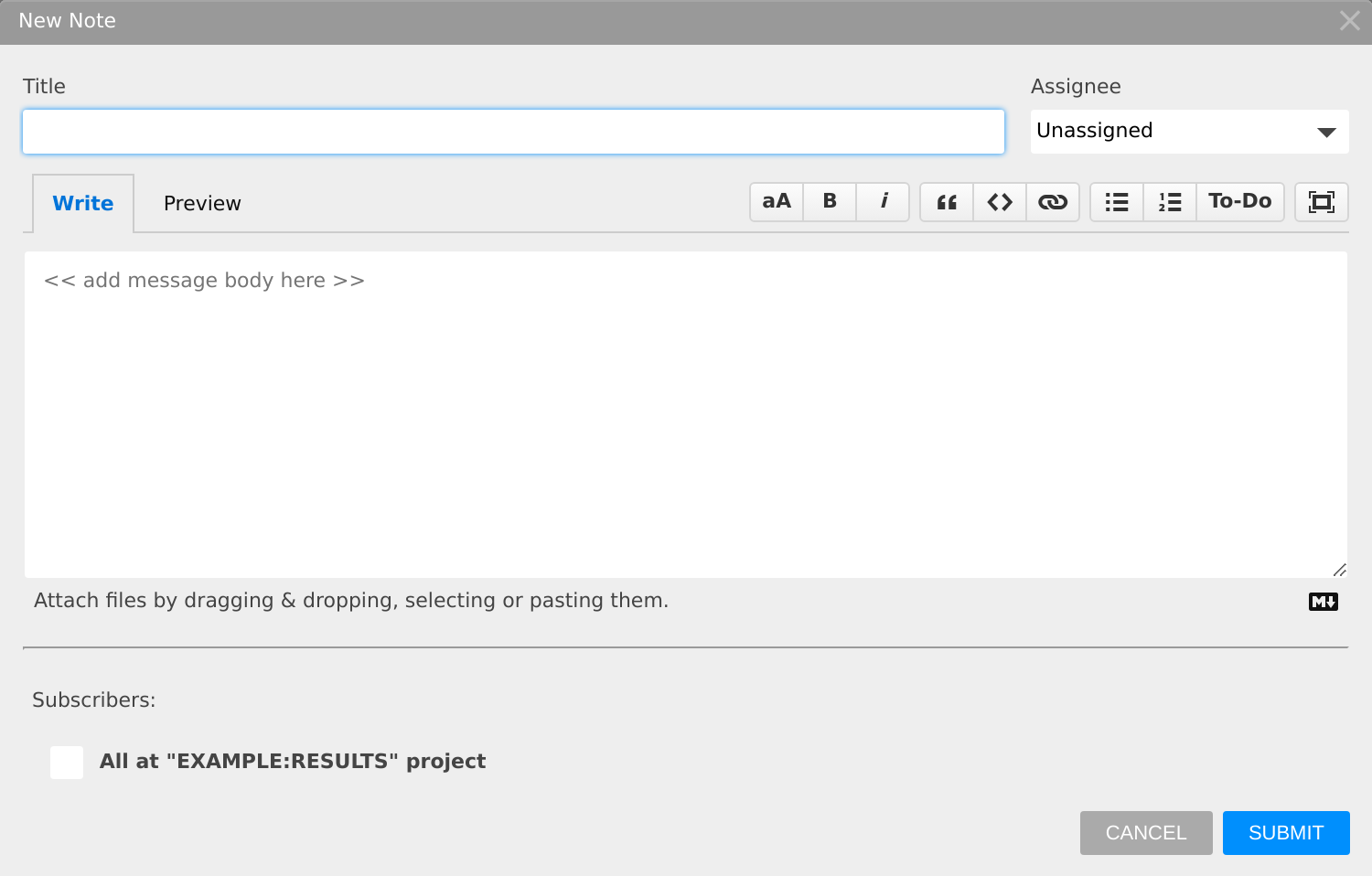
| Field | Does |
|---|---|
| Title | the Note's name in the Notes list |
| Assignee | optional: the person responsible for its follow-up, such as its To-Dos. Choosing an assignee subscribes them. |
| Text | Markdown, with Write and Preview tabs and a toolbar (hover a button for what it does), including a To-Do button. Drag, select or paste files to attach them: an image is shown in the Note, other files are linked. |
| Subscribers | who gets an email when the Note is submitted and when comments are added. All at "<Project>" checks everyone with access to the Project. The creator is always subscribed. |
Note From a Result
To discuss a specific Result, such as its failures, comment on it. The comment goes to the Result's Note: Testspace creates it with the first comment, with a summary of the Result and a link to it, and adds later comments to it.
- In Testspace: on the Space's Results tab, open the menu at the left of the Result's row and select Comment. If the Result already has a Note, Comment opens it.
- By email: reply to the Result's notification email. Your reply is added as a comment.
Triage adds to the Result's Note too: when you change a failure's Triage notes, or exempt a failure or remove its exemption, Testspace adds a comment saying so to the Note of the Result where you triaged it.
A Result's Note can't be edited; add a comment instead.
To-Do List
A Note's Markdown can hold To-Do items, check boxes the assignee ticks off. Type them, or insert them with the toolbar's To-Do button:
Bob, please take care of these before the release:

- [ ] Add Suites for the planned stability tests
- [ ] Update the [Common Procedures](https://example.com/wiki/procedures) page
- [ ] Submit the test report
Each - [ ] line is shown as a check box. To check or uncheck an item, click its box in the Note. The Notes list counts the open items.
Who Can Do What
| Action | Who |
|---|---|
| Create a Note, comment | anyone with access to the Project |
| Edit or delete a Note | its creator, and Organization admins |
| Check To-Do items | its creator, its assignee, and Organization admins |
| Archive or restore | its creator, whoever last edited it, and Organization admins |
| Star | Organization admins |
An archived Note can't be edited, starred, or have its To-Do items checked; restore it first.