Insights
Testspace analyzes the Results your Spaces publish and summarizes them as Insights: three indicators, the rates behind them, and charts. The Project's Insights tab shows them for the Project and for each of its Spaces; the Organization's Insights tab shows a summary for each Project; and each Space's Metrics tab shows the Space's own.
Insights count a Space's completed Results in the selected period. Sandbox Spaces are left out.
Indicators
- Results Strength: the stability of results and infrastructure
- Test Effectiveness: whether tests are capturing side-effects
- Workflow Efficiency: whether failures are being resolved quickly
Each indicator has a status; hover over it to see why. Each indicator's criteria are below.
| Icon | Status | Description |
|---|---|---|
 | Undetermined | Not enough data in the period to judge |
 | Good | Meeting or exceeding expectations |
 | Fair | Not meeting the highest level |
 | Poor | Performing poorly; should be reviewed |
Project Insights

At the top, choose the period: 4w, 12w, 6m or 12m. Beside it are its dates, the number of Results and the total number of test cases they contain. Below come the three indicators with their rates, then the charts and a card for each Space.
Results Strength
Results Strength shows the stability of results and infrastructure.
| Status | Criteria |
|---|---|
| Undetermined | no tested cases, or no Results other than Invalid ones, in the period; or Invalid Rate over 15% |
| Good | Pass Rate over 95%, or Health Rate 80% or more |
| Fair | Pass Rate 80% to 95%, or Health Rate 65% to under 80% |
| Poor | Pass Rate under 80% and Health Rate under 65% |
| Rate | Description |
|---|---|
| Pass Rate | Total passed cases ÷ total tested (passed, failed and blocked) cases, across the period's Results. Invalid Results are left out. - Good over 95%- Fair 80% to 95%- Poor under 80% |
| Health Rate | The % of Results that were Healthy, out of the Results that aren't Invalid. A partial Result counts as its verdict. See Health. - Good 80% or more - Fair 65% to under 80% - Poor under 65% |
| Health Recovery Time | The average time, in days, from a Space's Health dropping (an Unhealthy Result) to its recovery: the next Healthy Result that ran every test still failing. See Health. |
| Invalid Rate | The % of Results that were Invalid. Over 15%, it shows red, and Results Strength (with its Pass Rate and Health Rate) is Undetermined. |
| File Churn | The total number of files changed. |
Test Effectiveness
Automated testing is meant to catch the commits that cause regressions, so new failures measure how effective CI testing is. Test Effectiveness shows whether tests are capturing side-effects.
The indicator comes from the Effective Regression rate:
| Status | Criteria |
|---|---|
| Undetermined | no regressions or no tested cases, or Effective Regression under 1% |
| Good | Effective Regression over 5%, up to 30% |
| Fair | Effective Regression 1% to 5%, or over 30%, up to 50% |
| Poor | Effective Regression over 50% |
Regressions:
- A regression is a Result with one or more failed or blocked test cases.
- A unique regression is a regression with one or more new failures.
- A recurring regression is a regression whose failures are all already tracked.
- A new failure is a case that fails for the first time, or fails again after it was resolved or retired (see Failure Tracking).
| Rate | Description |
|---|---|
| Effective Regression | The % of Results with new failures (unique regressions), Invalid Results included. |
| New Failures | The total number of new failures. |
| Test Cases | The average number of test cases per Result. |
| Test Duration | The average test duration per Result. |
| Spaces that Regressed | The % of the Spaces with Results in the period that regressed at least once ("Branches that Regressed" in a Connected Project). |
Workflow Efficiency
Failures left to drift during Continuous Integration cost more to fix. Workflow Efficiency shows whether test failures are being resolved quickly.
| Status | Criteria |
|---|---|
| Undetermined | no failures in the period |
| Good | Resolved Failures over 80% and Failure Resolution Time under 8 days (or no resolution time yet) |
| Fair | Resolved Failures 60% or more (including over 80% with a resolution time of 8 days or more) |
| Poor | Resolved Failures under 60% |
| Rate | Description |
|---|---|
| Resolved Failures | The % of the period's failures that were resolved, or are passing at the end of the period. The failures are those tracked when the period started plus the new ones since, so the rate can include failures that first occurred before the period. - Good over 80%- Fair 60% to 80%- Poor under 60% |
| Failure Resolution Time | The average time, in days, from a failure's first occurrence to its resolution. Like Resolved Failures, it includes failures that are passing at the end of the period. |
| Long-term Failures | The % of failures that have been tracked for more than five Results, among the failures of Results that had any. Shown orange over 14% and red over 20%. |
| Merged Pull Requests | The % of the period's open pull requests that were merged, with the counts, e.g. 100% (13/13). |
| PR Resolution Time | The average time to merge for merged pull requests. |
A retired failure counts as a failure that occurred and was never resolved.
Charts
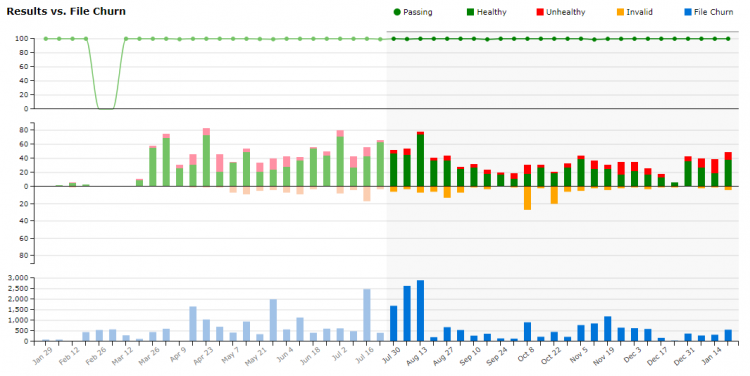
Results vs. File Churn
A column chart that compares the Results' Health (Healthy, Unhealthy and Invalid columns) and pass rate (Passing line) against file churn, a measure of change. It shows the Project's last 12 months, with the selected period highlighted.
Results Counter
Results (N) shows the number of Results in the period.
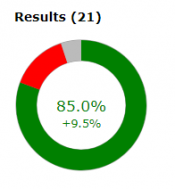
Its pie chart shows the average Result: its passed, failed, not applicable and untested cases. Below it, Pass Rate Change compares the period's Pass Rate with the previous period's.
Regressions Counter
Regressions (N) shows the number of Results with regressions in the period.
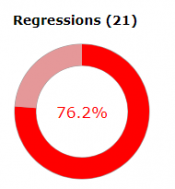
Its pie chart splits them into unique (red) and recurring (light red) regressions, as defined in Test Effectiveness. Regressions don't include failing metrics.
Space Cards
Below the charts, a card for each Space (each branch, in a Connected Project) that published Results during the period. Its name opens its Metrics tab.
Use them to judge whether the software in each Space is ready, whatever ready means for your Project: from "is a feature or bug fix ready to be merged?" to "is a product ready for customer release?" Read them in the context of change: the number of Results, Merged Pull Requests and File Churn. Test Growth, Code Coverage Growth and fewer Static Analysis issues show quality improving.
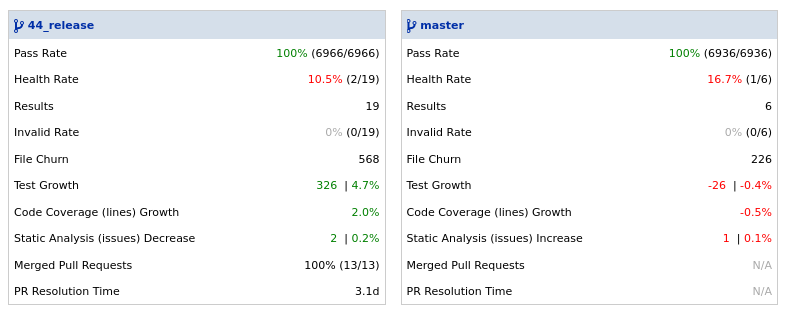
| Rate | Description |
|---|---|
| Pass Rate | As in Results Strength, for the Space. |
| Health Rate | As in Results Strength, for the Space. |
| Results | The total number of Results, Invalid ones included. |
| Invalid Rate | As in Results Strength, for the Space. |
| File Churn | The total number of files changed (with a Code Change metric). |
| Test Growth | The growth in test cases, as a number and a %. |
| Code Coverage (…) Growth | The growth in each code coverage metric. |
| Static Analysis (issues) Increase/Decrease | The increase or decrease in static analysis issues. |
| Merged Pull Requests | The % of open pull requests that were merged, with the counts (Connected Projects). |
| PR Resolution Time | The average time to merge (Connected Projects). |
Organization Insights
The Organization's Insights tab has the same period choices and header (the number of Results and test cases across the Organization). Below it, a card for each Project with Results in the period, most recently active first. Each card shows:
- the Project's name, which opens its Insights tab, its visibility and its connection status
- its Results Strength, Test Effectiveness and Workflow Efficiency indicators (hover over one to see why)
- a small Results vs. File Churn chart