Failures
Testspace tracks each failing test case from one Result to the next, so you can tell a new failure from a flaky or a consistent one. How Tracking Works gives the rules. A Result's Failures tab lists its failing and tracked cases, its Issues tab groups them by the issues they reference, and Triage lets you add notes, link issues and exempt a failure.
Tracking States
A tracked failure is in one of these states:
| Mark | State | Means |
|---|---|---|
| ● red | New | failing for the first time, or failing again after being fixed (resolved) or after it stopped running (retired) |
| ◐ purple | Flaky | switching between passing and failing (see What Flaky Means) |
| ● gray | Consistent | failing consistently |
| ○ gray ring | Exempt | left out of the pass rate and Health, whatever its state (see Exemptions) |
| (none) | missing | a tracked failure that didn't run in this Result: its Status reads missing, and its Tracking shows its state grayed |
Tracking Marks
The marks appear wherever tracking is shown: the Tracking column of the Suite tree and the Results list (as counts, e.g. ● 2 new ◐ 1 flaky 1 missing), and the Tracking column of Failures and Suite Details (one state per case).
Recent Runs
Failures, Suite Details and the Triage dialog show a case's recent runs as a row of squares, newest first; the newest is wider. Hover a square for its status.
| Square | Status |
|---|---|
| ✓ green, ✓ | passed |
| ✗ red, ✗ | failed |
| ! red, ! | blocked |
| • light gray, • | not applicable |
| hollow | untested |
| dashed outline | missing from that Result |
| ✗ dark gray | exempt: the run's symbol on gray |
How Tracking Works
Testspace tracks each failing test case from Result to Result, until it really passes five times in a row (in Manual testing, once). Besides the states above, it keeps two internal ones: Passing (failing before, passing now, but not five times yet) and Resolved (passed five times; tracking ends). A tracked failure stops being listed when it is resolved, or retired because its test stopped running.
Failed and blocked are one kind of failure. A case that fails and is then blocked stays Consistent.
An exempt failure is still tracked, but left out of Health; see Exemptions.
What Flaky Means
Testspace decides Flaky from a case's status in each Result, not from a rate or from retries within a run: a failing case is Flaky when it passes and then fails again before it has passed five times in a row. Fail, pass, fail is enough.
- It stays Flaky until it passes five times in a row (Resolved) or fails five times in a row (Consistent again).
- There is no time window and no percentage: three Results or thirty, the order of passes and failures is all that counts.
- Untested and not applicable runs don't count either way, and failed and blocked count alike.
- A case that has never failed isn't tracked, so it can't be Flaky.
- Manual testing has no Flaky: a tester's pass resolves a failure at once (In Manual Testing).
What Counts as a Pass
A failure is resolved after five passes in a row. Only a real pass counts: untested and not applicable runs are no evidence either way, so the failure's state holds, and they don't break a run of passes either.
When a Tracked Test Doesn't Run
When a tracked test that is still failing (Consistent or Flaky) doesn't run, its state holds. The case's Status reads missing and its Tracking shows its state grayed (hover: Didn't run in this result; Flaky from earlier runs); its Suite, the Results list and the Result's header count it as N missing. An exempt one is missing too. Its Cause says when it last ran, e.g. last ran Oct 26 · failed; expanded, the case links to that Result, and Suite Details shows the same line. A New failure always ran: it lasts only the Result where it failed.
- In a subset, a missing test doesn't count toward anything: subsets often leave out tests on purpose.
- A test missing from 5 Results in a row, over at least 14 days, is retired (subsets, and Invalid Results, don't count toward the 5): tracking ends, and it is no longer listed. Retired is not counted as a fix. Its exemption, notes and issue links are cleared, and if it fails again it starts over as New.
- A Suite replaced in the same folder (its source file ran under another name in a complete Result, such as a renamed Suite) retires its tracked tests at once, without waiting.
The 14 days protect Suites that run less often than every Result (nightly, or on one platform only): they run again within that time, so their tests aren't retired however often the Space receives Results.
Insights' Workflow Efficiency counts a retired failure as one that occurred and was never resolved.
In Manual Testing
A tester's pass is a verification, so in Manual testing a failing case is Resolved as soon as it passes. A Manual case is therefore New or Consistent while failing, and never Passing or Flaky. Untested is still no evidence, and within one session the last run counts.
Deleting a spec retires its failures at the next session; removing a case from a spec retires its failures at the next session that includes the spec. Turning Manual testing off retires every spec's tracked failures at the next Result.
Failures Tab
Open the Failures tab from any Result, on the Current tab or from the Results tab. Its count is the number of failed and blocked cases. When nothing fails but tracked failures didn't run, the count is gray and names them (e.g. 2 flaky); when there is nothing to show, the tab is muted.
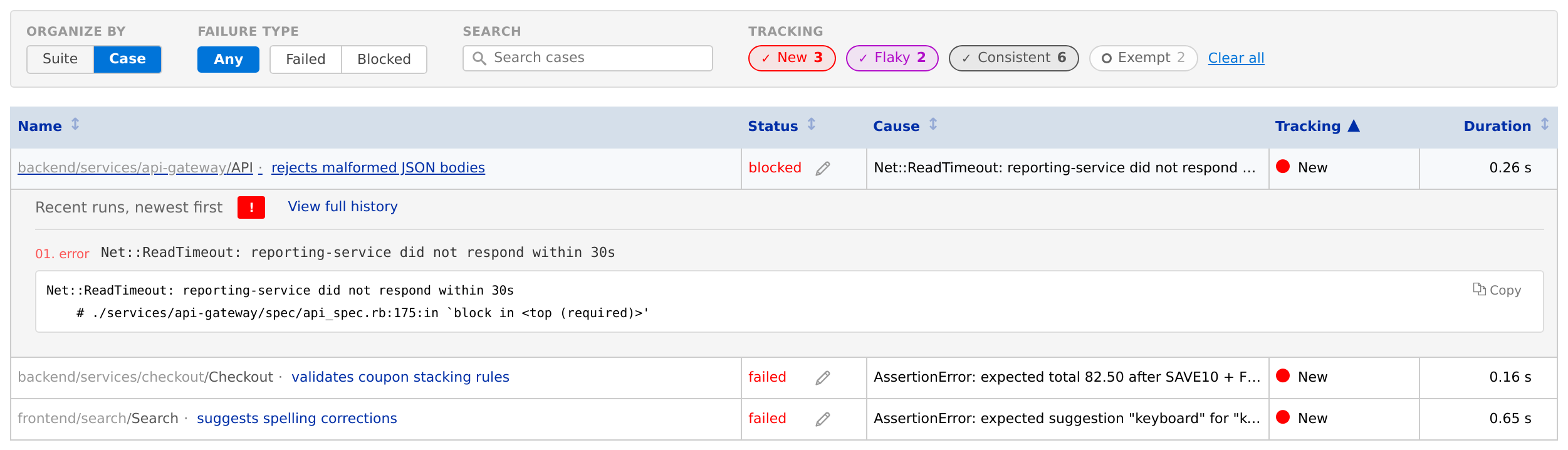
A filter bar narrows the list:
| Filter | Options |
|---|---|
| Organize by | Case (the default) or Suite |
| Failure type | Any (every tracked case, including those that didn't run), or Failed, Blocked or both |
| Search | by case name or path (e.g. suite/case); organized by Suite, by Suite path |
| Tracking | chips for New, Flaky, Consistent and Exempt, each with its count; Clear all clears them |
New, Flaky and Consistent are selected when the Result has cases in that state; Exempt isn't. A chip that isn't selected still shows its count, and an empty list says which unselected chips have cases.
When some failing cases have Triage notes or issues, a line says how many, e.g. 3 of 12 failing cases have notes or issues.
By Case
One row per case. Each column sorts when you click its name.
| Column | Shows |
|---|---|
| Name | the folder path, Suite and case name; below, the start of its Triage notes |
| Status | the case's status (an exempt case's is struck through), the Triage pencil, and its linked issues |
| Cause | the first line of the failure message; hover for more. No failure message reported when the report has none, and Expected failure (pytest xfail) for an xfail reported without output. |
| Tracking | the case's tracking state, or missing |
| Duration | the case's duration |
Click a case's name to expand it:
- Recent runs, newest first, as squares
- View full history, which opens the case's history page
- Open spec run, for a Manual case
- the case's output and annotations, or a note that it didn't run in this Result
By Suite
One row per Suite with failing or tracked cases, with the Suite tree's columns: Name, Status, Tracking and Duration. Click a Suite to open its Suite Details, listing the cases that match the filters.
From the All tests tab, a Suite's or folder's failed, blocked or exempt count opens Failures by Case, searched to that Suite or folder.
Large Results
Filtering isn't available for a Result with more than 5,000 failed, blocked and exempt cases (such a Result is Invalid): the Failures tab lists its failing cases without the filter bar. It isn't available either while a Result is still in progress.
Issues Tab
A Result's Issues tab groups its failures by the issues they reference. See Issues Tab.
Triage
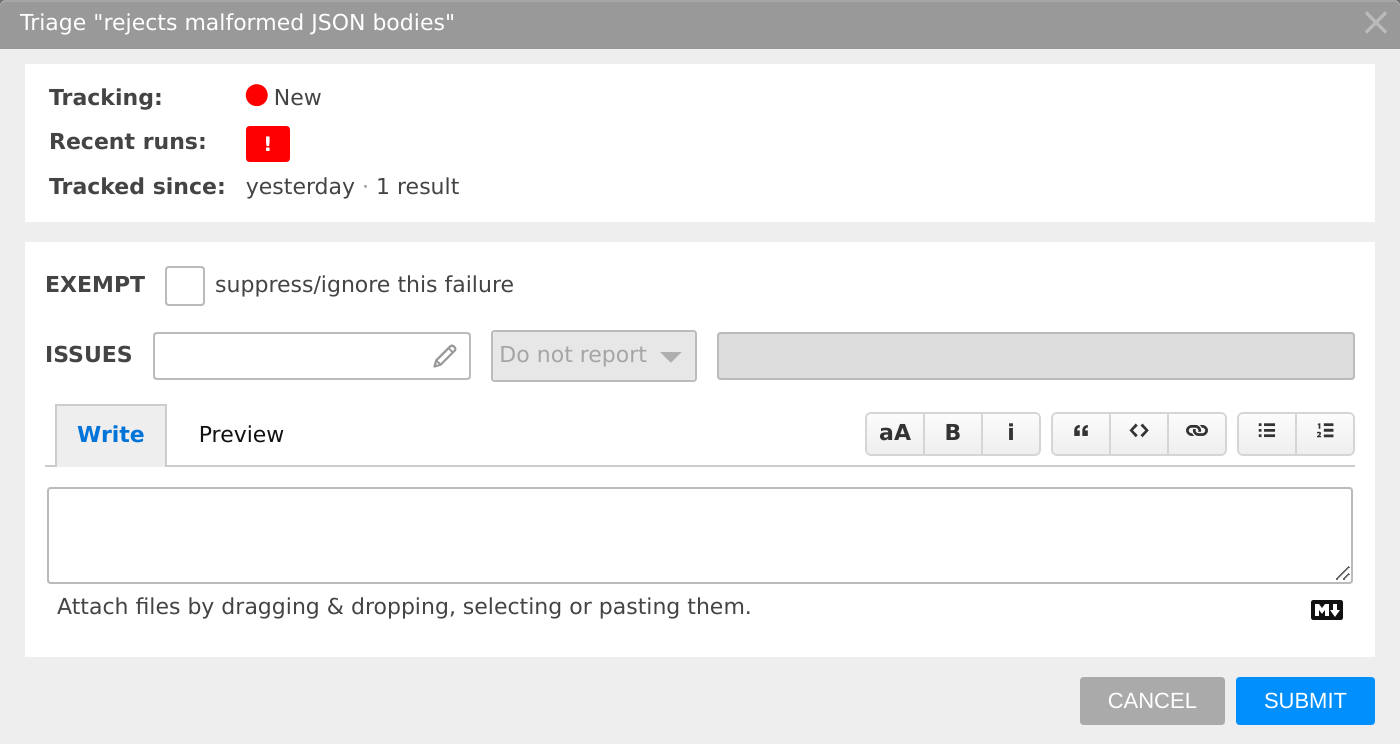
On the Space's active Result (the one Current shows), a pencil follows the status of each tracked failure, in Failures, Issues and Suite Details, from the Current tab or the Results tab. A filled pencil means the case is already triaged; hover it to see what is set.
Click the pencil to open the Triage dialog. Its top shows the case's tracking state, recent runs, and how long it has been tracked. Below:
| Field | Does |
|---|---|
| Exempt | suppress/ignore this failure: exempts the case (see Exemptions). Not shown for a Manual case. |
| Issues | links issues: paste an issue's URL, choose Push new issue to create one in the Project's issue tracker, or Add Comment to an issue already linked (Issues) |
| Notes | a Markdown editor for notes on the failure; issue URLs typed here are added to Issues |
Pushing issues needs an enabled, connected issue tracker (GitHub, GitLab, Bitbucket or Jira) and a Space that isn't a sandbox; otherwise the select is disabled and its tooltip says why.
Notes and issues stay with the failure while it is tracked, and show in Failures for later Results. Changing the notes or the exemption also adds a comment to the Result's Note.
Exemptions
An exempt case keeps its real status, shown struck through, but is left out of the pass rate and Health. It is counted as N exempt beside the other counts; that count opens the exempt cases in Failures. Exempt cases aren't in the New, Flaky and Consistent chips; select Exempt to list them.
A failure becomes exempt in two ways:
| Set by | Lasts |
|---|---|
| Triage, the Exempt checkbox | until you clear it, or the failure is resolved or retired |
| pytest xfail (an expected failure), automatically on import | while the test keeps its xfail marker; a run without the marker ends it. Triage can't change it (Exemption control is managed in the source code). |
When a failure is resolved or retired, its tracking ends along with its exemption, notes and issue links; if it fails again, it starts over as New.