Metrics
The Space's Metrics tab shows a graph for each of the Space's metrics: the standard graphs Testspace creates for every Space, optional graphs it creates when a Result contains their data, and custom metrics you add.
Choose the period at the top of the tab: recent (the most recent 28 Results), 4w, 12w, 6m or 12m. Beside it, the tab shows how many Results the period holds and how many test cases they contain.
Each graph has a menu (☰) beside its name, with the options that apply to it: Edit, Embed, Test and Delete. Under the name of a metric made from your data, its path opens the report or Suite it comes from in the active Result.
With recent selected, each column is one Result. With a time period selected, each column is one sub-period; most graphs then plot one Result from it: the Space's active Result if it falls in that sub-period, otherwise the Result with the most test cases, then the most passes. The Failure Tracks and Health graphs are exceptions, described below.
When a Space was created as a branch of a Connected Project, or by copying an existing Space's settings, the recent graphs start with the originating Space's last Result as a baseline, drawn in dimmed colors.
Insights
Below the period, the tab shows the Space's three Insights indicators for the same period (with recent, for the dates those Results span). Hover an indicator's status to see why it has it. The Space shows a subset of the Project's rates:
| Indicator | Rates |
|---|---|
| Results Strength | Pass Rate, Health Rate, Invalid Rate |
| Test Effectiveness | Effective Regression, New Failures, Test Duration |
| Workflow Efficiency | Resolved Failures, Failure Resolution Time, Long-term Failures |
The indicators' criteria and the other rates, such as Health Recovery Time or Merged Pull Requests, are on the Project's Insights tab (Insights).
Standard
Testspace creates four graphs for every Space: Test Suites, Test Cases, Failure Tracks and Health.
Test Suites
The history of the Space's Suites. Each column shows how many Suites Passed, Failed and were NA, and its tooltip names the Result it comes from.
Test Cases
The history of the Space's test cases. Each column has the series Passed, Failed/Blocked, NA/Exempt and Untested, and a Threshold line. The tooltip lists Passed, Failed and Blocked with their percentages, NA/Exempt, Untested, the threshold and the Result.
The threshold is the Space's Min pass threshold: the pass rate a Result needs to be Healthy. It is 100% by default. To change it, select Edit from the graph's menu.
The badge beside the graph shows the active Result's pass rate.
Failure Tracks
The history of the Space's tracked failures, as Testspace tracks them from Result to Result. Its series are:
| Series | Counts |
|---|---|
New | cases that failed for the first time, or failed again after being resolved or retired |
Tracked | cases still being tracked: the tooltip splits them into Flaky, Consistent and Passing |
Exempt | tracked cases that are exempt, whatever their state |
Resolved | cases resolved in this Result |
The Triaged line counts the tracked cases that have a Triage note.
The graph shows the full tracking model: besides the failing states, it counts Passing (a failure that passes now, but hasn't passed five times in a row yet) and Resolved. The Failures view lists only failing cases (New, Flaky and Consistent).
The summary beside the graph shows how many failures were resolved and the average resolution time, as in Insights' Workflow Efficiency. The path under the graph's name, /[failures], opens the active Result's Failures tab.
With a time period selected, each column shows New, Tracked and Exempt as of the sub-period's latest Result, and the sum of Resolved over its Results.
Health
The Space's Health over time, with Healthy drawn green, Unhealthy red and Invalid amber.
With recent selected, each bar is one Result. A partial Result is drawn outlined with its lower half filled, and the legend has a partial entry. The tooltip lists each check (the pass rate and each metric badge with a threshold) with its value, colored by whether it passed, so you can see why a Result was Unhealthy.
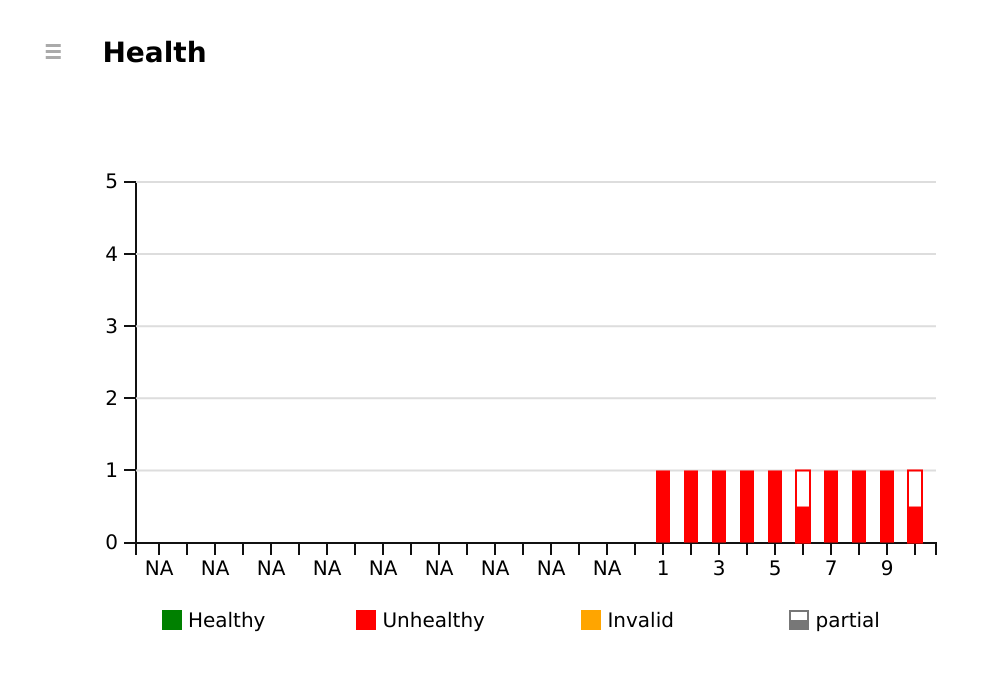
With a time period selected, each column shows how many Results were Healthy, Unhealthy and Invalid in that sub-period.
The summary beside the graph shows the period's Health Rate and Invalid Rate.
Graphs From Your Data
Testspace creates the Code Change, Code Coverage, Static Analysis and Issues graphs the first time a Result contains their data.
Code Change
For Git, Subversion and Perforce-Helix users, the Code Change metric shows change activity as context for the other metrics.
The Testspace client gathers the change information when it pushes a Result. See the Testspace client reference.
The graph charts the number of files changed (File Churn); the summary in the upper right shows the period's commits, file churn and line churn.
Code Coverage
For a Code Coverage Suite, Testspace creates a graph for each coverage type in your coverage file, each with a badge. The badge shows the coverage but checks nothing until someone sets a threshold: a new coverage metric has none, so low coverage doesn't make a Result Unhealthy until you decide what's too low.
| Metric Name | Badge Name |
|---|---|
| Code Coverage (lines), (statements) or (sequences) | line coverage |
| Code Coverage (functions) or (methods) | method coverage |
| Code Coverage (branches), (conditions) or (conditions/decisions) | branch coverage |
| Code Coverage (blocks) | block coverage |
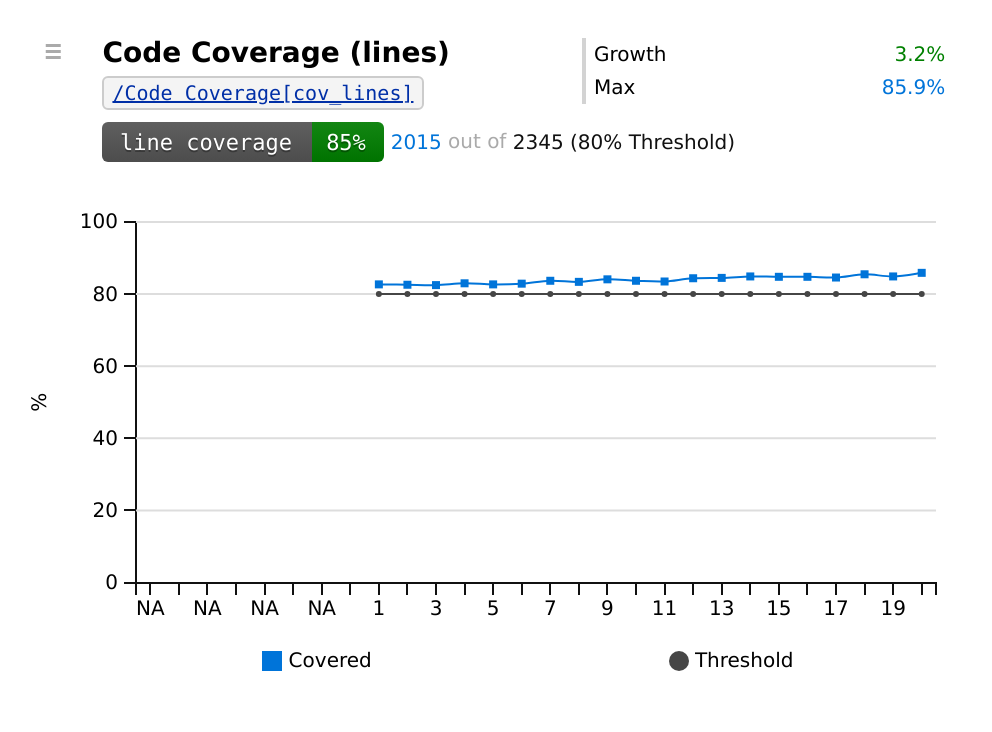
Setting a threshold: the Code Coverage report offers Set threshold, suggesting the Result's coverage less 2 points, rounded down; or select Edit from the graph's menu. In the Edit Metric dialog you can change (the dialog's full editor, Customize, is for super admins):
- the Min threshold the metric must meet to pass. Without a threshold, the metric doesn't count toward the Space's Health.
- whether the metric has a Badge
- the name shown on the badge
A threshold stays with its coverage type: when Testspace creates a coverage metric, it takes the threshold of the Space's newest coverage metric of the same type, if that has one. So renaming a coverage Suite, which creates new metrics, keeps its threshold.
Coverage metrics created before Release 78 keep their 50% threshold; their badges, if nobody had edited them, were renamed from coverage, coverage(fx), coverage(?:) and coverage({}) to the names above.
Third Party Code Coverage
Testspace supports the third-party coverage services Coveralls and Codecov.io. A Code Coverage Suite is created when you link an external service with the Testspace client link option.
- The badge comes from the third-party service, instead of Testspace.
- The graph shows line coverage as the third-party service reports it.
- The threshold for Health is the service's own target, set in its settings.
The Min threshold can't be changed in Testspace when you use a third-party coverage service.
Static Analysis
Testspace adds the Static Analysis metric the first time a Result contains static analysis data.
| Metric Name | Badge counts | Badge | Badge Name |
|---|---|---|---|
| Static Analysis (issues) | Medium or High severity issues | Informational | analysis |
The graph shows Low, Medium and High severity issues. The badge reads the number of issues ("1 issue", "12 issues"), or "passed" when there are none. It is informational: it checks nothing until someone sets a check, so issues don't make a Result Unhealthy. The Static Analysis report offers Set check: no High issues, or select Edit from the graph's menu. In the Edit Metric dialog you can:
- choose which issues the badge counts: High severity, Medium or High severity or Any severity
- make the badge Pass/Fail (it fails when it counts any issue, and then counts toward the Space's Health) or Informational
Issues
Testspace adds the Issues graph when a Result references issues, or when you add an issue to a failure in Triage. It shows the Open and Closed issues. The path under the graph's name, /[issues], opens the active Result's Issues tab.
When a Metric's Data Is Missing
A metric's path turns red when the Space's active Result doesn't contain the metric's data, for example after its Suite was renamed.
A metric that stops reporting reads not reported on its badge for 5 Results, and the Result is partial. After that, Testspace hides its badge, and its graph notes "Badge hidden · no data since …"; the badge returns when the metric reports again. Testspace deletes code coverage and static analysis metrics it created (and you haven't edited) after 15 Results and 30 days without data. A gray NA is a metric with no value that wasn't expected. See Metrics That Stop Reporting for the rules. To remove a metric you no longer need, select Delete from its menu.
Custom Metrics
Graph your own measurements, such as latency, memory use or warning counts: publish them in a CSV file with your results, then add the graph with New Metric on this tab. See Custom Metrics.
Badges
A metric's badge shows its value for a Result. A badge with criteria (a threshold) is one of the checks for the Result's Health: it is green when the value passes and red when it fails. A badge without criteria is informational and isn't judged.
Turn a metric's badge on or off, and set its name and threshold, with Edit in the graph's menu. Testspace enables the badges of the coverage, static analysis and Issues metrics it creates. The Test Cases graph's badge is the Space's pass rate.
Enabled badges appear:
- beside each graph on the Metrics tab
- in the Space's row in the Spaces listings
- in the Metrics column of the Space's and the Project's Results lists
- on the Metrics line of a Result's page
The Issues badge appears only on its graph: the Result's Issues tab shows the issues.
Sharing a Graph or Badge
You can share a metric's graph or badge in places such as a GitHub README, Confluence or SharePoint. Select Embed from the graph's menu (all graphs except Test Suites).
The Embed dialog has:
- Graph: choose HTML for an
<iframe>snippet to embed on a page that supports iframes, such as Confluence or SharePoint, or URL for a link to a page showing the graph. - Badge (for a metric with a badge, and Test Cases): the badge as a live link, in HTML, Markdown, Textile, RDoc or ReStructured Text. The badge links back to the Space.
For Confluence, add the HTML Macro and paste in the
<iframe>code.