Projects and Spaces
Your Organization's Projects tab is the landing page of Testspace: each Project, with its most active Spaces. See Concepts for how Organizations, Projects and Spaces fit together.
Projects Tab
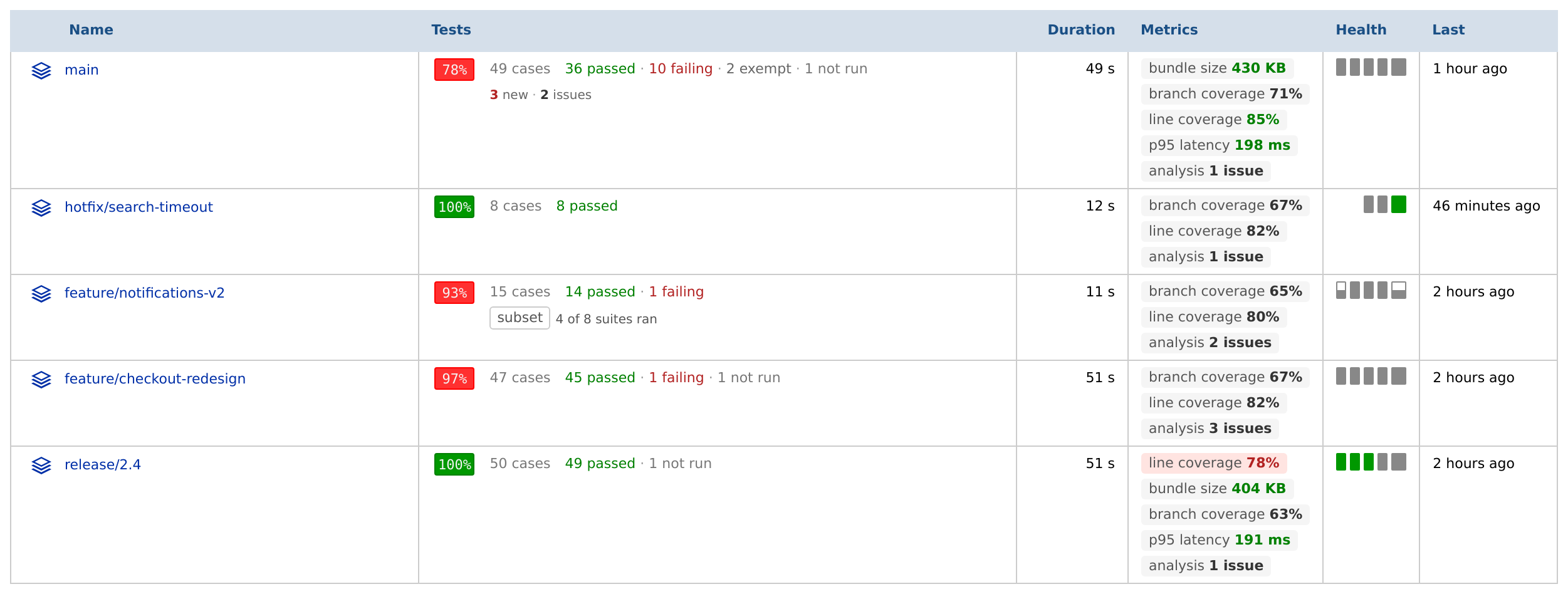
Each Project is listed with its name, description and, for a Connected Project, the icon of its repository's service. Below it are its recent Spaces, in the Spaces listing's columns:
- up to 10 Spaces that aren't sandbox Spaces and have a Result from the last month (if none has, the one with the most recent Result)
- a Connected Project's default branch, always
View more Spaces, when the Project has more, opens the Project's Spaces tab
An archived Project lists no Spaces.
Projects you have access to come first, then the Organization's other active Projects, each with a Request Access link: a public one opens read-only, a private one shows only its name.
Without access to it, a private Project is listed by name only. Click its Request Access link, or Request Project Access at the top right, to ask the Organization's admins for access. Admins and the owner have access to every Project.
New Project
Admins and the owner create Projects with the New Project button at the top right. There are two types of Project: Connected (managed by a repository) and Standalone (managed in Testspace).
Deleted Projects
A deleted Project can be restored for 30 days by default (the page of deleted Projects states the Organization's period). For admins and the owner, when there are deleted Projects, a Recover your deleted projects link appears below the Projects listing. It opens a list of the deleted Projects; hover over a row and click its restore icon, then confirm.

The restored Project gets its original name back. A restored Connected Project is reconnected to its repository.
Project View
Click a Project's name to open it. The Project view has these tabs:
- Spaces - the Project's Spaces listing (selected by default), with the number of Spaces
- Insights - Insights across the Project's Spaces
- Results - recently published Results across the Project's Spaces (Results)
- Notes - Notes: discussions and to-do items
- Activity - a journal of the Project's events, newest first
Spaces Listing
The Project's Spaces tab lists its Spaces, with the most recent Result first; Show more Spaces at the bottom loads more, and the search box finds a Space by name. Which Spaces it lists depends on the Project type:
- Standalone: every Space, except those the retention policy has hidden.
- Connected: the Spaces with a Result, Spaces with Manual testing enabled, and the default branch. Spaces of deleted branches and closed fork pull requests are hidden.
The Organization's Projects tab shows the same columns for each Project's recent Spaces.
| Column | Shows |
|---|---|
| Name | The Space's icon, name and description. The icon tells the kind of Space: a branch, a fork pull request (PR-123), the :TAGS: Space for a repository's tags, or Results Only for a Standalone Space; hover it for its kind. A sandbox Space's icon is gray and its hover adds (sandbox). A branch with a pull request links to it (open or merged icon). |
| Tests | For the active Result: the pass-rate badge, then N cases · N passed · N failing, with N exempt and N not run when there are any (hover for the split). A second line, when it applies, says the Result was a subset (3 of 41 suites ran), links N new failures to Failures, and links N issues to the Issues tab. A Space without a Result reads No recent result. |
| Duration | The test time of what ran in the active Result (Duration). When the Result recorded its CI build, a second line shows the CI service's icon and the build's duration; hover for its start and end times. |
| Metrics | The Space's enabled metric badges as text, failing ones first, then metrics that weren't reported. Each name opens the report or Suite its data comes from; after five, +N more opens the Result. The Issues metric is left out (the Tests column counts issues). |
| Health | The Health of the last 5 Results, one bar each, oldest to newest (the newest is wider): green Healthy, gray Unhealthy, amber Invalid, half-filled partial, and a dashed outline for a missed publication deadline. Hover for each Result's verdict and what failed; click to open the Space's Results tab. |
| Last | When the active Result was published. |
Pass-Rate Badge
The badge in the Tests column is the active Result's pass rate (passed cases out of those that passed, failed or were blocked):
- green: meets the Space's pass-rate threshold
- red: below it
- amber: the Result has no cases, or over 5,000 failures
- gray: no Result, a Result judged only on its metrics (shown as —), or a missed publication deadline
Publication Deadline
A Space's Health Indicators setting, Publication deadline for results in days (0 to disable), sets how many days (0 to 7) the Space may go without a new Result. 0, the default, turns it off. When a Space misses its deadline (with 4 hours' grace):
- its Tests badge turns gray, hovering Missed publication deadline of N days
- its Health column shows a dashed bar for the gap
- users who get the Project's result notifications (Notification Unhealthy only or All, see Users & Permissions) receive a MISSED Results publication deadline! email, unless the Project is archived
A missed deadline never changes a Result's Health.
Weekly Digest
Each Monday, Testspace emails a summary of the past week for each Project you get the Digest for (a setting in your user settings, on by default). It's sent at midnight in your time zone; a Project with nothing new that week sends none.
The subject is [my-project] Digest for the week of <date>. The digest shows:
- how many Results were published that week, in how many of the Project's Spaces, and which Spaces missed their publication deadline; also the files uploaded and the Notes added or updated
- Spaces summary: each Space with a Result or a missed deadline that week, with its Health for the week and its number of Results and change in total test cases
- a link to the Project's Insights
Space View
Click a Space's name, in the Organization or the Project view, to open it. The Space view has these tabs:
- Current - the Space's active Result (Results)
- Manual - its Manual specs and test sessions, when Manual testing is enabled (Manual)
- Metrics - graphs of the Space's metrics (Metrics)
- Results - every Result published to the Space (Results)
- Activity - a journal of the Space's events, newest first
The menu beside the Space's name has the same options as in the Spaces listing: see Connected or Standalone.