Standalone Projects
A Standalone Project has no repository: you create its Spaces and choose its settings in Testspace. Use it for results from any source, such as custom build automation, and for Manual specs written in Testspace's editor.
Creating a Project
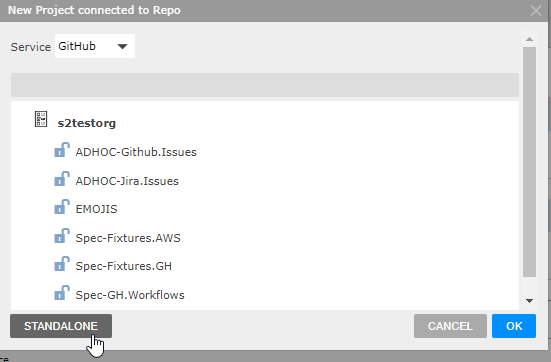
Admins and the owner create a Project with the New Project button at the top right of the Organization's Projects tab. When nothing is connected, it opens the Standalone form directly. When the Organization has a service connection, the dialog opens on Connected repositories: click STANDALONE at its bottom left.

| Setting | Description |
|---|---|
| Name | Unique among the Organization's Projects, ignoring case. It can't contain /, &, # or ?. Tip: avoid spaces in names; they need quoting on the command line. |
| Visibility | Private: only users with access see it. Public: its content is visible to everyone. Archived: hidden from users without access and shown without Spaces in the Projects tab; every Space is a sandbox, and no Spaces can be added. On a plan without private Projects, the choices are Public and Archived. |
| Description | Text shown under the Project's name. Supports a subset of Markdown. |
| Issues provider | Where Testspace files and links issues: generic (the default), or a GitHub repository or Jira project available through the Organization's service connections. See Issues provider. |
| Label | Applied to the issues Testspace creates. Blank by default: no label. Hidden for generic. See Label. |
Issues provider
The Issues provider list offers generic, then each GitHub repository (with issues enabled) and each Jira project available through the Organization's service connections. The same provider serves automated Results and Manual test sessions. See Issue Providers for what each one does.
Label
The Label field, under Issues provider, sets a label for the issues Testspace creates for this Project. It is blank by default, and nothing is applied when blank. For GitHub, the label must already exist in the repository; see Issue Providers.
Project Options
Hover over the Project's row in the Organization's Projects tab and click the menu icon at its left. The options are for admins and the owner.

| Option | Description |
|---|---|
| Edit | The Project's settings, and its push token. |
| Access | Who has access to the Project, and each user's Notification and Digest settings (Users & Permissions). |
| Sync | Disabled: not applicable to Standalone Projects. |
| Delete | Delete the Project, after confirming. It can be restored for 30 days. |
Changing a Project from Private to Public asks you to confirm, since all of its content becomes visible to everyone.
Push Token
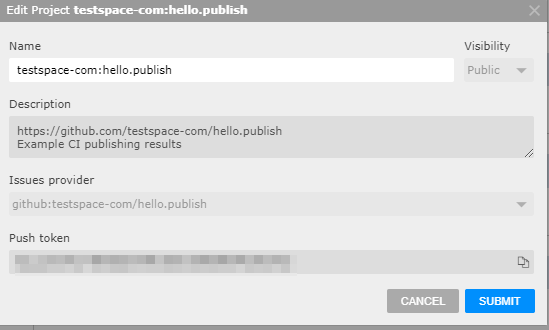
Each Project has a push token for publishing results with the Testspace client. Copy it from the Project's Edit dialog.
Spaces
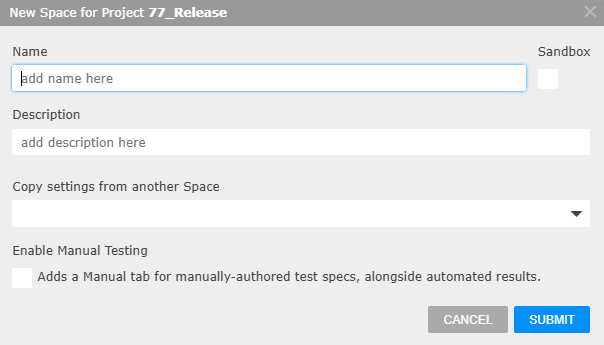
Anyone with access to the Project creates a Space with the New Space button on the Project's Spaces tab. See the Spaces listing for its columns.
Space Settings
The New Space dialog and the Space's Edit dialog have these settings:
| Setting | Description |
|---|---|
| Name | Unique among the Project's Spaces, ignoring case. Tip: avoid spaces in names; they need quoting on the command line. |
| Sandbox | Makes the Space a sandbox. |
| Description | Text shown under the Space's name. Supports a subset of Markdown. |
| Copy settings from another Space | New Space only. Start from an existing Space of the Project: see Copy Settings. |
| Health Indicators | Edit only. Publication deadline for results in days (0 to disable): 0 to 7 days, 0 by default. A missed deadline grays the Space's Tests badge, shows a dashed bar in its Health column and emails subscribers; it never changes a Result's Health. See Publication Deadline. |
| Enable Manual Testing | Adds the Manual tab, for Manual specs written in Testspace (Enabling Manual Testing). |
| Publish Path | Shown when Enable Manual Testing is checked: where the Space's Manual results are placed in the Result tree. Leave it blank in most cases (Publish Path). |
Copy Settings
Copy settings from another Space copies from the chosen Space:
- its metrics, with their badges and thresholds
- its active Result, as a base Result named
[N] <base-space>#<base-result>, carrying its tracked failures and exemptions and its metric values
Space Options
Hover over the Space's row in the Spaces listing and click the menu icon at its left; the Space view has the same menu beside the Space's name. A disabled option's tooltip says why it isn't available to you.
| Option | Description |
|---|---|
| Edit | The Space settings. |
| Duplicate | Spaces with Manual testing: copy the Space's specs and includes into a new Space (Duplicate a Space). |
| Merge into... | Spaces with Manual testing: push spec and include changes into another Manual Space of the Project (Merge a Space). Disabled when there is no other. |
| Move | Move the Space to another Project you have access to. |
| Reset | Spaces with Manual testing; admins and the owner only. Deletes all of the Space's Results and its metrics other than the standard graphs, after confirming; the specs stay (Reset). Disabled when there is nothing to remove. |
| Delete | Delete the Space, after confirming. It can be restored for 30 days. |
Sandbox
Check Sandbox to make the Space a sandbox Space, for work in progress. Every Space of an archived Project is a sandbox.
Deletion and Restore
A deleted Space can be restored for 30 days by default (the page of deleted Spaces states the Organization's period). When the Project has deleted Spaces, a Recover your deleted spaces link appears below its Spaces listing. It opens a list of the deleted Spaces; hover over a row and click its restore icon, then confirm. The restored Space gets its original name back; if another Space has taken it, the restore fails.

For deleted Projects, see Deleted Projects.
Retention Policy
To keep Projects manageable, each day Testspace hides (marks stale) old Spaces of a Standalone Project that has more than its minimum number of Spaces. A Space qualifies when both it and its latest Result are older than the retention period; the oldest go first, down to the minimum. The defaults, set per Organization:
- 84 days (12 weeks) to keep a Space
- 50 Spaces kept per Project, whatever their age
A hidden Space no longer shows in the Spaces listing. Once it has no Result from the past year, it is deleted permanently.
Results themselves follow a separate retention policy.