Connected Projects
A Connected Project is connected to one Git repository on GitHub, Bitbucket or GitLab. The repository manages it: Spaces follow the repository's branches, and settings come from the repository and its .testspace.yml file.
Quick Start
Connect your repository host to your Organization: GitHub, GitLab or Bitbucket (Integrations).
Create the Project: New Project, then select the repository (Creating a Project). Each branch gets a Space.
Publish test results from CI. In GitHub Actions, install the client and push your results files after the tests run:
steps:
  - uses: actions/checkout@v4
  - uses: testspace-com/setup-testspace@v1
    with:
      domain: ${{ github.repository_owner }}
  # ... build and run your tests ...
  - name: Publish Results to Testspace
    run: testspace ./test-results/*.xml
if: always()domainis your Organization's subdomain, and a private repository also needs atoken. Other CI systems and options: CI/CD Support; what you can publish: Push Results.Add Manual testing (optional): a
.testspace.ymlat the repository's root with amanual:key, and Markdown specs in aspecs/folder:specs/login.md---
testspace:
---
# Login
Check that a user can sign in.
## Valid password
* Enter a valid user name and password
* Click Sign inCommit and push: the branch's Space lists the spec on its Manual tab (Manual, Writing a Spec, Running Tests).
Branches and pull requests: a branch's Space is a sandbox until it is the head of an open pull request. Each Result posts a check on its commit that follows the Result's Health (Commit Status).
Creating a Project
Admins and the owner create a Project with the New Project button at the top right of the Organization's Projects tab. The New Project connected to Repo dialog opens:
- Choose the Service: the services connected to your Organization (Integrations).
- Select a repository and click OK. An open lock marks a public repository, a closed lock a private one.
A repository is grayed out when it already has a Project, when it is private and your plan has no private Projects, or (GitHub) when you lack admin access to it; hover it for the reason. The STANDALONE button switches to a Standalone Project instead.
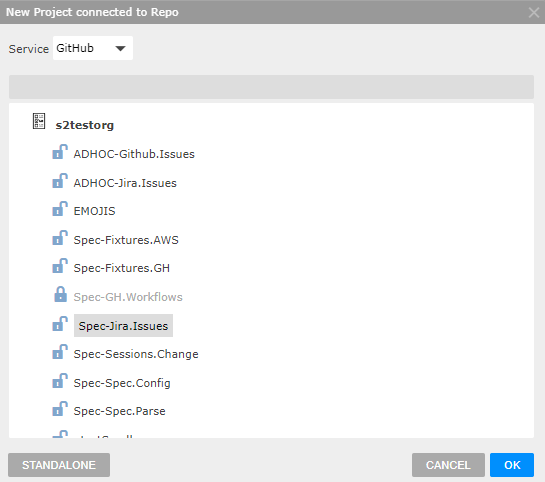
The new Project is named <org>:<repo>. Testspace creates a Space for each branch, picks up open pull requests, and gives access to the Organization's users who signed in with that service and are collaborators on the repository.
Project Options
Hover over the Project's row in the Organization's Projects tab and click the menu icon at its left. The options are for admins and the owner.

| Option | Description |
|---|---|
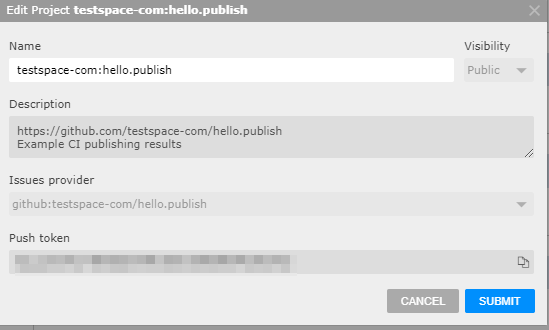
| Edit | Rename the Project and copy its push token. Visibility, Description and Issues provider are shown but come from the repository (controlled in the connected Repo). |
| Access | Who has access to the Project, and each user's Notification and Digest settings (Users & Permissions). |
| Sync | Fetch the repository again: its description, visibility, default branch and issues provider, every branch's Space and pull requests, and re-create the webhook. Use it when the Project is out of sync. |
| Delete | Delete the Project, after confirming. It can be restored for 30 days. |
The Project's Visibility follows the repository: Private for a private repository, Public for a public one, Archived for an archived one. Testspace keeps the name <org>:<repo> in step with the repository until you rename the Project.
The service icon beside the Project's name links to the repository. It turns red when the Project is out of sync (the daily sync failed) or disconnected (see Disconnection); hover it for which.
Push Token
Each Project has a push token for publishing results with the Testspace client. Copy it from the Project's Edit dialog.
Spaces
Testspace creates and hides Spaces as the repository changes:
- Branches: each branch gets a Space named after it. A new branch's Space starts from the Space of the branch it was created from (the default branch if that can't be found): it copies its metrics, badges and thresholds, and a base Result named
[N] <base-space>#<base-result>that carries its tracked failures and exemptions. - Fork pull requests: each pull request from a fork gets a Space named
PR-<number>, started from its target branch's Space in the same way, with the pull request's title as its description. It is a sandbox while the pull request is a draft. - Tags: Results published from a build of a tag go to one Space,
:TAGS:, which appears in the Spaces listing once it has a Result.
When a branch is deleted or a fork pull request is closed, its Space is hidden (its description says so), or deleted if it never had a Result. The Spaces listing shows the Spaces with a Result, Spaces with Manual testing, and the default branch.
You can't create, move or rename these Spaces.
Space Settings
Choose Edit from the Space's options menu.
| Setting | Description |
|---|---|
| Name | Read-only: the branch name. |
| Sandbox | Read-only: set by the repository (see Sandbox). |
| Description | Text shown under the Space's name. Supports a subset of Markdown. |
| Health Indicators | Publication deadline for results in days (0 to disable): 0 to 7 days, 0 by default. A missed deadline grays the Space's Tests badge, shows a dashed bar in its Health column and emails subscribers; it never changes a Result's Health. See Publication Deadline. |
Space Options
Hover over the Space's row in the Spaces listing and click the menu icon at its left; the Space view has the same menu beside the Space's name. A disabled option's tooltip says why it isn't available to you.
| Option | Description |
|---|---|
| Edit | The Space settings. |
| Move | Disabled: not applicable to Connected Projects. |
| Reset | Only on Spaces with Manual testing. Enabled for admins and the owner on a release Space: deletes all of the Space's Results and its metrics other than the standard graphs, after confirming; the specs stay (Reset). |
| Delete | Enabled only for a hidden Space (its branch was deleted); otherwise disabled or not shown. |
Sandbox
A branch is a sandbox Space unless it is the default branch, the head of an open (non-draft) pull request, or matches a release pattern.
Configuration
A .testspace.yml file at the root of a branch configures that branch's Space. Testspace reads it from the branch's latest commit; testspace.yml also works.
root
├── README.md
└── .testspace.yml
Every key is optional:
manual:
  path: "specs"           # folder of Manual spec files; defaults to "specs"
  publish_path: ""        # where Manual results go in the Result tree; defaults to ""

issues:
  provider: "github:org/repo"  # defaults to the Project's own repository
  label: "testspace"           # defaults to "testspace"

release: "*_rel"          # one branch pattern, or a list of them

commit_status: true       # defaults to true
Manual
A manual: key, even an empty one, enables Manual testing in the branch's Space:
manual:
path is the folder of spec files (default specs). publish_path is where the Space's Manual results are placed in the Result tree (default empty); it's mostly used when automated results are published to the same Space. See Manual Configuration for how specs map to branches and folders.
Issues
provider sets where Testspace files and links issues. It defaults to the Project's own repository.
| Provider | Format | Example |
|---|---|---|
| GitHub | github:<org>/<repo> | provider: "github:s2technologies/microservices" |
| Jira | jira:<site>/<key> | provider: "jira:s2technologies/TST" |
| Generic | generic | provider: generic |
Jira needs a Jira service connection (Integrations). Generic is for a tracker Testspace doesn't integrate with: Testspace only stores the issue references you give it.
label is applied to issues Testspace creates; it defaults to testspace. Not every provider supports labels. See Issue Providers for what each provider does.
Release
The default branch is always a release Space. Other branches are sandbox Spaces unless they are the head of an open, non-draft pull request or match a release pattern. release takes one pattern or a list, with shell-style wildcards:
release:
  - "*_rel.1*"
  - "*_rel.2*"
Quote a pattern that starts with * or &, since YAML treats those characters specially.
Commit Status
When a Result is published with a commit ID, Testspace posts a check on that commit. Its outcome follows the Result's Health, not your CI build status: see CI Build Status and the CI Check. Turn it off with:
commit_status: false
For a repository that contains only tests, turn the commit status off: the check is meant for repositories with the application's source code.
Deletion and Disconnection
Disconnection
Deleting the repository doesn't delete the Project: Testspace marks it disconnected. The same happens when the service connection is removed from the Organization, or when the Project has been out of sync for 7 days. A disconnected Project:
- shows a red service icon: The project is currently disconnected
- has its repository webhooks removed, so new branches and pull requests no longer create Spaces
- has its branch Spaces hidden, except the default branch
- posts no commit checks
Deletion
Only admins and the owner delete a Project, from its options menu. A deleted Project can be restored for 30 days, and is reconnected to its repository when restored.
A hidden Space with no Result from the past year is deleted permanently. Results themselves follow a separate retention policy.