Setup
The tutorial uses a Standalone Project, so no repository is needed; what you learn applies to Connected Projects too (Connected quick start). Concepts explains its words: Organization, Project, Space, Result, Suite and case.
Setup has three steps: sign up (if you don't have an account yet), create a Project, and create a Space.
Sign Up
Go to the pricing page, choose a plan, and click Sign up with Email. No GitHub, GitLab or Bitbucket account is needed for this tutorial. Sign Up describes every option.
When you finish, you are on your Organization's Projects tab.
Create a Project
- Click New Project at the top right. With no repository service connected, it opens the New Project form.
- Enter
tutorialas the Name and click SUBMIT. The other fields can stay as they are (Standalone Projects describes them).

If your Organization is connected to GitHub, GitLab or Bitbucket, New Project opens a list of repositories instead. Click STANDALONE at the dialog's bottom left to get the form above.
Create a Space
- Click the
tutorialProject. It opens on its Spaces tab. - Click New Space.
- Enter
mainas the Name, check Enable Manual Testing, and click SUBMIT.
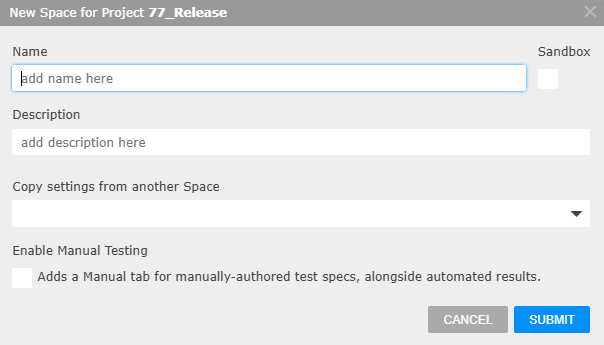
Enable Manual Testing adds a Manual tab to the Space, for specs you write and run in Testspace. The tutorial uses this one Space for both published results and Manual tests.
Avoid spaces in Project and Space names: they need quoting on the command line when you publish.
Recap
This section covered:
- Signing up with Email, which creates your Organization
- Creating a Standalone Project,
tutorial, with New Project - Creating a Space,
main, with Manual testing enabled
Next, publish results to the main Space.