Review Results
The main Space now has two Results: the one you published, with one of its two test cases failing, and the spec run. This step looks at how Testspace judges them and where to find what failed, starting where the Space opens: the Current tab.
Current Tab
- Click the
mainSpace. It opens on the Current tab.
Current shows the Space's active Result, the latest one: the spec run, with both Suites.
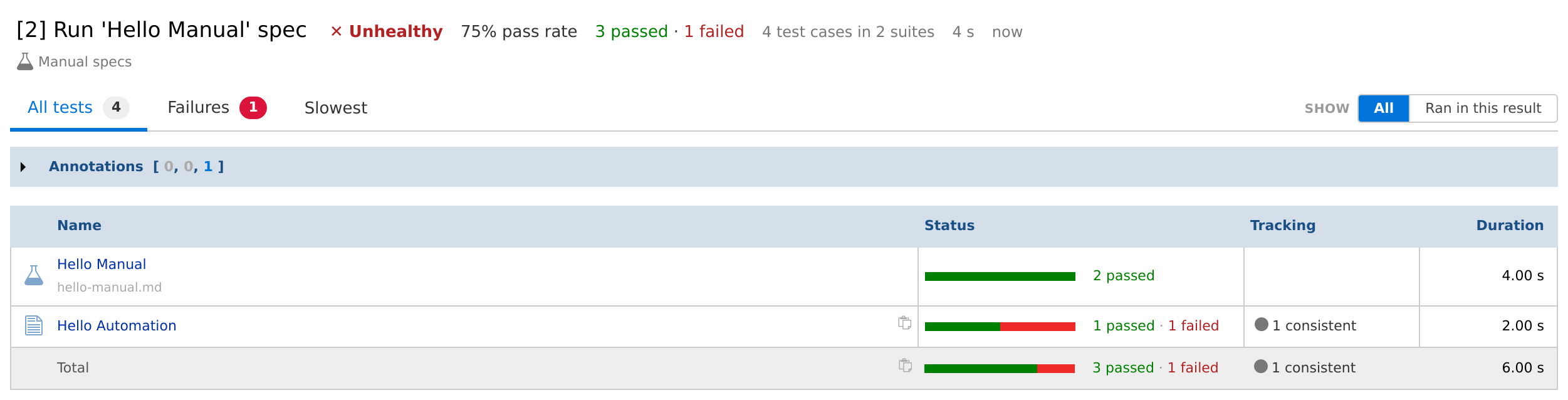
A Space with Manual testing enabled combines its Results: your spec run (the flask icon) plus the Hello Automation Suite carried from the published Result. Choose Ran in this result under Show to see only this run (Show).
A Result's Health
The summary header reads ✕ Unhealthy, then the pass rate (75%), 3 passed · 1 failed, and 4 test cases in 2 suites.
Health asks one question: did the checks set for the Space pass? Here the only check is the pass rate, and the Space's threshold is 100% by default. Your spec run passed, but the carried Hello Automation Suite still has Test Case Two failing, so the Result is Unhealthy. Health explains the checks, and when a Result is Invalid or partial.
Failures Tab
- Select the Failures tab.
It lists Test Case Two with its Status, its Cause (the first line of its failure message) and its Tracking state, ● Consistent. In the published Result it was ● New: Testspace tracks each failing case from one Result to the next, and a failure is New only in the Result where it first fails, then Consistent while it keeps failing (or Flaky if it alternates).
Click the case's name to expand it: its recent runs, a link to its full history, and its output.

Because Current is the Space's active Result, a pencil beside a failing case's status opens Triage: add notes, link or push an issue, or exempt the failure from Health. See Triage.
Results Tab
- Select the Space's Results tab.
The heading sums up the Space's latest Results: the date range, the number of Results, the test cases executed, and the overall pass rate. Beside it, Last 2 results shows one bar per Result's Health, oldest first; gray is Unhealthy, green Healthy. Hover the bars for each Result's verdict.
- Stay on the By Result sub-tab. It lists the two Results, newest first: Run 'Hello Manual' spec, then the published one. The Health column shows each Result's verdict, here ✕ Unhealthy for both. Hover it to see the check that failed, and click a Result's name to open it.
By Test Case
- Select By Test Case.
It has one row per test case across the Space's Results: two from Hello Automation and two from Hello Manual. Last Run is the outcome of the last Result each case ran in (hover it for that Result), followed by its pass rate and how many times it passed, failed and ran. Click a case to see its history.
Read More
- Results: every part of a Result's page and the Results tab
- Failures: tracking states and rules, the Failures and Issues tabs, Triage and exemptions
- Health: the rules behind Health, partial and Invalid
Recap
This section covered:
- The Current tab: the active Result, automated and Manual results together in a Space with Manual testing
- A Result's Health: Unhealthy when its pass rate is below the Space's threshold, carried Suites included
- The Failures tab: a failing case tracked from New to Consistent, and Triage on the active Result
- The Results tab: the Health of the latest Results, By Result and By Test Case